
Server data from the Official MCP Registry
Execute commands in visible VSCode terminal tabs with output capture and session reuse.
About
Execute commands in visible VSCode terminal tabs with output capture and session reuse.
Security Report
Valid MCP server (1 strong, 1 medium validity signals). No known CVEs in dependencies. Package registry verified. Imported from the Official MCP Registry.
12 files analyzed · 1 issue found
Security scores are indicators to help you make informed decisions, not guarantees. Always review permissions before connecting any MCP server.
Permissions Required
This plugin requests these system permissions. Most are normal for its category.
How to Install
Add this to your MCP configuration file:
{
  "mcpServers": {
    "io-github-sirlordt-vscode-terminal-mcp": {
      "args": [
        "-y",
        "vscode-terminal-mcp"
      ],
      "command": "npx"
    }
  }
}Documentation
View on GitHubFrom the project's GitHub README.
vscode-terminal-mcp

MCP server that executes commands in visible VSCode terminal tabs with full output capture. Unlike inline execution, every command runs in a real terminal you can see, scroll, and interact with.
Key Features
- Visible Terminals: Commands run in real VSCode terminal tabs, not hidden processes. You see everything in real time.
- Session Reuse: The
runtool automatically reuses idle sessions, creating new terminals only when needed. - Long-Running Support: Fire-and-forget execution with
waitForCompletion: false, then poll output incrementally withread. - Subagent Isolation: Tag sessions with
agentIdto keep parallel agent workloads separated.
Requirements
- VS Code 1.93+ (for Shell Integration API)
- Node.js 20+
Getting Started
Claude Code
claude mcp add BashTerm -- npx vscode-terminal-mcp@latest
VS Code / Copilot
Add to your .vscode/mcp.json:
{
  "servers": {
    "BashTerm": {
      "type": "stdio",
      "command": "npx",
      "args": ["vscode-terminal-mcp@latest"]
    }
  }
}
Add to your .cursor/mcp.json:
{
  "mcpServers": {
    "BashTerm": {
      "command": "npx",
      "args": ["-y", "vscode-terminal-mcp@latest"]
    }
  }
}
Add to your claude_desktop_config.json:
{
  "mcpServers": {
    "BashTerm": {
      "command": "npx",
      "args": ["-y", "vscode-terminal-mcp@latest"]
    }
  }
}
Your First Prompt
After installation, try asking:
Run
ls -lain the terminal
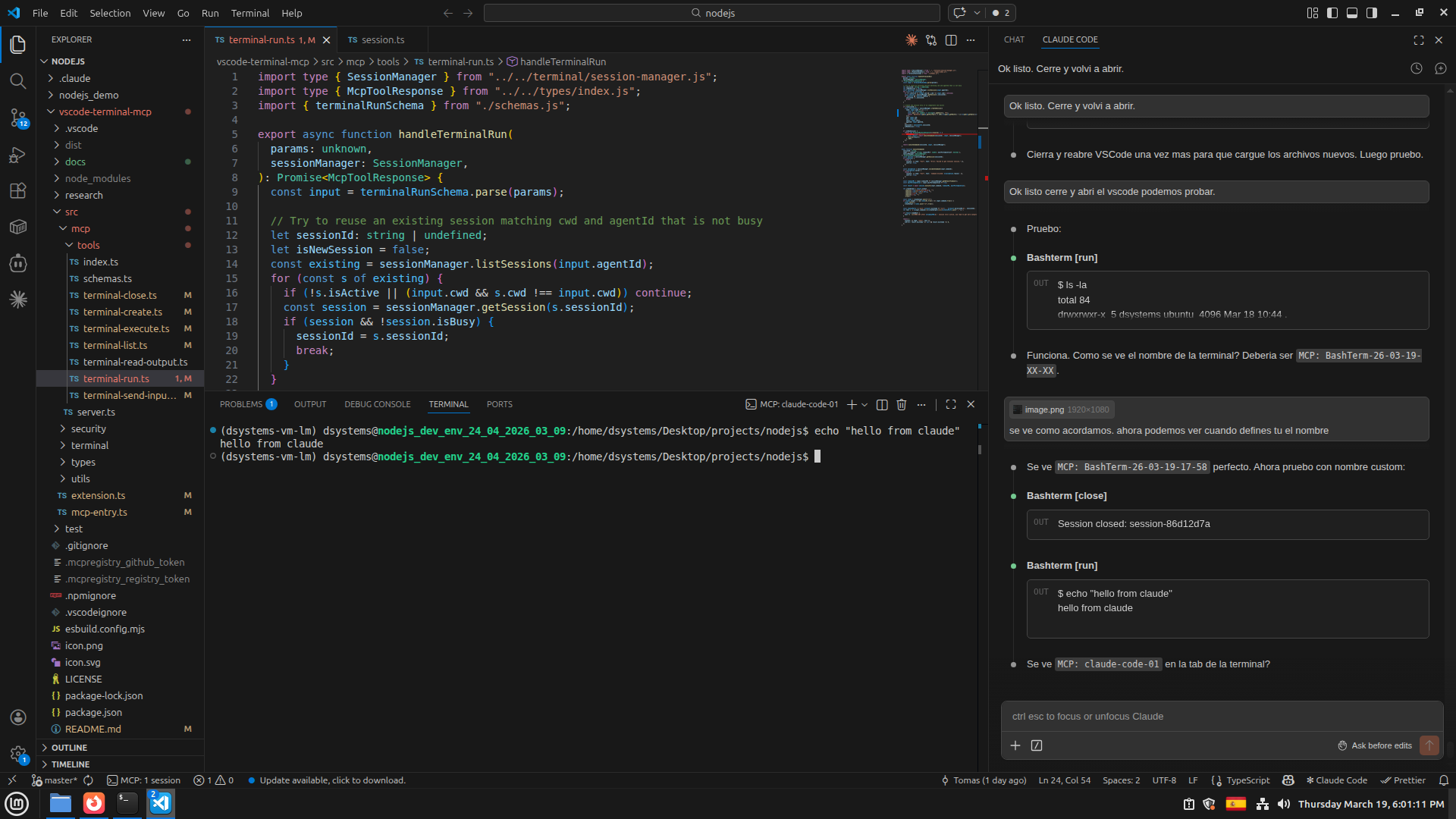
You should see a new terminal tab open in VSCode with the command output.
Screenshots
Running a command with run
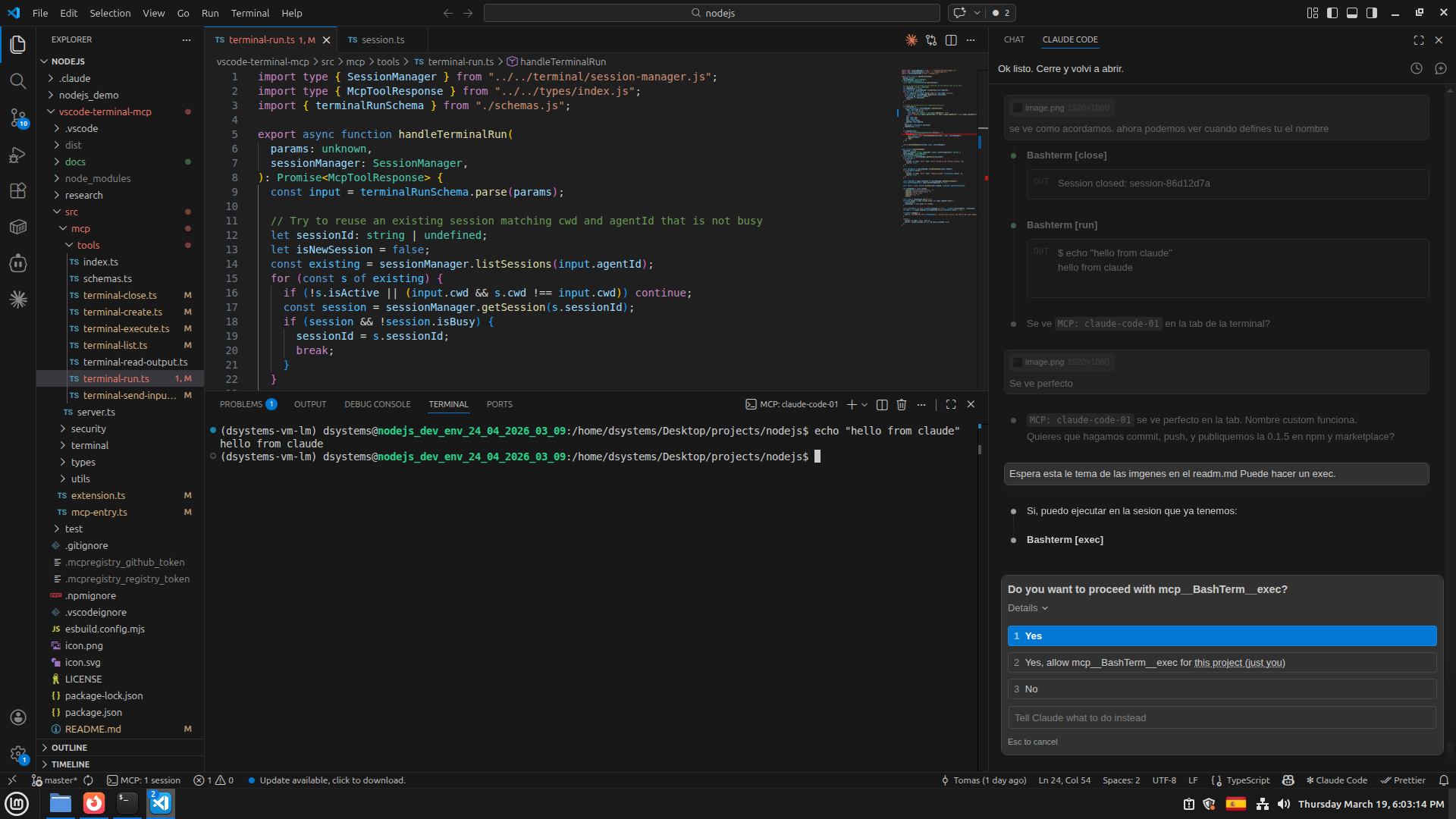
Permission dialog for exec
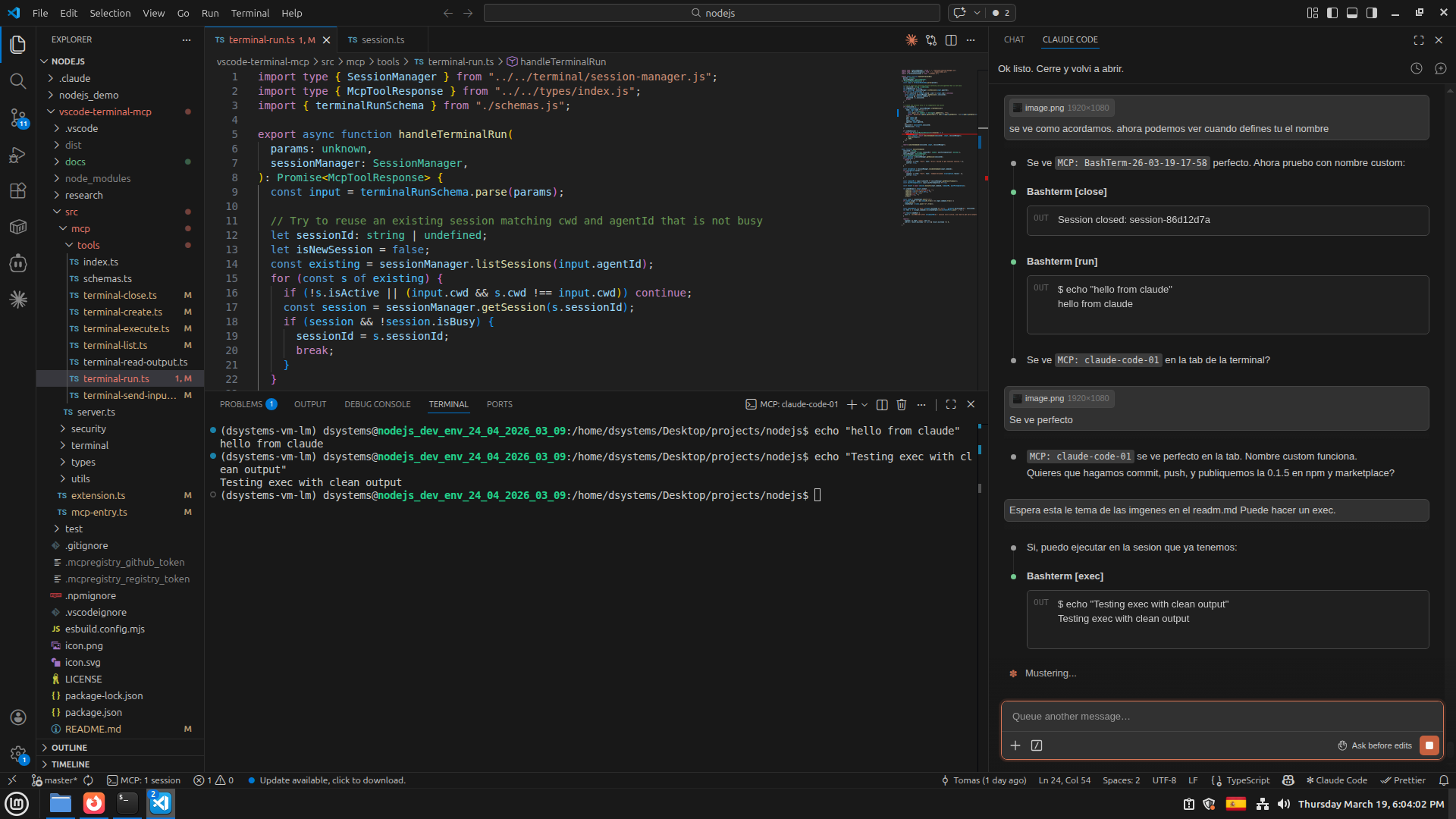
Exec result with clean output
Tools
Quick Execution
| Tool | Description |
|---|---|
run | Create (or reuse) a terminal and execute a command in one step. Returns clean output with exit code. |
Session Management
| Tool | Description |
|---|---|
create | Create a new visible terminal session. Returns a sessionId. |
exec | Execute a command in an existing session and capture output. |
read | Read output from a session with pagination. Supports incremental reads and tail mode (offset: -N). |
input | Send text to an interactive terminal (prompts, REPLs, confirmations). |
list | List active sessions. Optionally filter by agentId. |
close | Close a terminal session and its VSCode tab. |
Usage Patterns
Simple Command
The run tool handles everything — creates a terminal if needed, executes, and returns clean output:
> Run npm test
$ npm test
PASS src/utils.test.ts (3 tests)
PASS src/index.test.ts (5 tests)

[exit: 0 | 1243ms | session-abc123]
Long-Running Process
For builds, deployments, or any command that takes a while:
> Start `npm run build` without waiting, then check progress
The agent will:
- Call
runwithwaitForCompletion: false— returns immediately - Call
readwithoffset: -10to check the last 10 lines - Repeat until the process completes
Interactive Commands
For commands that need user input:
> Run npm init and answer the prompts
The agent will:
- Call
runwithnpm init - Call
readto see the prompt - Call
inputto send the answer
Parallel Agents
Subagents can work in isolated terminals using agentId:
> Have one agent run tests while another runs the linter
Each subagent gets its own terminal tagged with its agentId, preventing output from mixing.
Configuration
The extension reads configuration from VSCode settings under terminalMcp.*:
| Setting | Type | Default | Description |
|---|---|---|---|
terminalMcp.maxSessions | number | 10 | Maximum concurrent terminal sessions |
terminalMcp.commandTimeout | number | 30000 | Default command timeout in ms |
terminalMcp.maxOutputLines | number | 5000 | Max lines kept in output buffer per session |
terminalMcp.idleTimeout | number | 1800000 | Close idle sessions after this many ms (0 = disabled) |
terminalMcp.blockedCommands | string[] | ["rm -rf /"] | Commands that will be rejected |
Recommended: Set as Preferred Tool
LLM agents like Claude Code have a built-in Bash tool that executes commands inline within the chat. The output is embedded in the conversation and hard to read, especially for commands with verbose output. We recommend telling the agent to prefer this MCP over its built-in Bash tool.
Add the following to your project's CLAUDE.md (or equivalent instructions file):
## Terminal Execution

Prefer the BashTerm MCP tools (`run`, `exec`, `read`, etc.) over the built-in Bash tool for executing commands.
BashTerm runs commands in visible VSCode terminal tabs where the user can see output in real time.
Only fall back to the built-in Bash tool for simple, non-interactive operations like reading environment variables.

For commands that may take longer than 30 seconds or produce large amounts of output (builds, test suites,
deployments, installs), use the pull mode pattern:
1. Call `run` with `waitForCompletion: false` to launch the command without blocking.
2. Call `read` with `offset: -10` to check the last 10 lines of output.
3. Repeat step 2 until you see the command has finished (look for exit messages, prompts, or "Done").
4. Report the final result to the user.

This prevents conversation timeouts and lets the user watch progress in the terminal in real time.
Why this matters:
| Built-in Bash | BashTerm MCP | |
|---|---|---|
| Output visibility | Embedded in chat, hard to scroll | Visible in VSCode terminal tab |
| Real-time feedback | User sees nothing until command finishes | User watches output live |
| Long-running commands | Blocks the conversation until timeout | Fire-and-forget + polling |
| Session state | Each command is isolated | Persistent sessions with history |
| Interactive commands | Not supported | Send input to prompts/REPLs |
Development: Updating the Extension
VSCode aggressively caches extensions in memory. When developing locally, code --install-extension and even "Developer: Reload Window" may not reload your changes. Use this workflow:
Quick update (no restart needed)
After modifying source files, build and copy directly into the installed extension directory:
cd /path/to/vscode-terminal-mcp
npm run build
cp dist/extension.js ~/.vscode/extensions/sirlordt.vscode-terminal-mcp-<version>/dist/extension.js
Then run "Developer: Reload Window" (Ctrl+Shift+P).
Full reinstall (when quick update doesn't work)
If VSCode still uses old code:
# 1. Uninstall and remove all copies
code --uninstall-extension sirlordt.vscode-terminal-mcp
rm -rf ~/.vscode/extensions/sirlordt.vscode-terminal-mcp-*

# 2. Check for ghost entries with old publisher names
# Look in ~/.vscode/extensions/extensions.json for stale entries
# Remove any entries with old publisher IDs (e.g., "terminal-mcp.vscode-terminal-mcp")

# 3. Close VSCode completely (not just reload)

# 4. Rebuild and install
npm run build
npx vsce package --allow-missing-repository
code --install-extension vscode-terminal-mcp-<version>.vsix --force

# 5. Open VSCode
Verify the correct version is loaded
# Check which extension directories exist
ls ~/.vscode/extensions/ | grep terminal

# Verify your changes are in the installed extension
grep "YOUR_UNIQUE_STRING" ~/.vscode/extensions/sirlordt.vscode-terminal-mcp-*/dist/extension.js

# Compare checksums
md5sum dist/extension.js ~/.vscode/extensions/sirlordt.vscode-terminal-mcp-*/dist/extension.js
Large Output Handling
When read returns output that exceeds the MCP client's token limit, the system automatically saves the full output to a temporary JSON file and returns the file path in the error message.
To extract the relevant content:
# Get the last 50 lines (most relevant for status)
tail -50 /path/to/saved/file.txt

# Or parse the JSON to extract the text content
python3 -c "import json; data=json.load(open('/path/to/file.txt')); print(data[0]['text'][-2000:])"
The file format is JSON: [{"type": "text", "text": "..."}]
This commonly happens with commands that produce heavy TUI output (progress bars, ANSI escape codes). Use smaller offset values (e.g., offset: -20 instead of offset: -100) to reduce the captured output size.
How It Works
- The VSCode extension activates and starts an IPC server on a Unix socket
- The MCP entry point (
mcp-entry.js) is spawned by the MCP client and bridges JSON-RPC stdio with the IPC socket - Commands execute in real VSCode terminals using the Shell Integration API for reliable output capture and exit code detection
- Output is stored in circular buffers with pagination support for efficient reading
Latest Changes (0.1.6)
- Screenshots in README for marketplace
- Clean output format for all tools — no more raw JSON
- Fixed
waitForCompletion: falsenot working - Disabled idle reaper — user closes sessions manually
- Unique IPC socket per workspace (multi-instance support)
- Custom terminal tab names with date format
- Large output handling documentation
See CHANGELOG.md for full history.
License
MIT
Reviews
No reviews yet
Be the first to review this server!
More Developer Tools MCP Servers
Git
Freeby Modelcontextprotocol · Developer Tools
Read, search, and manipulate Git repositories programmatically
Fetch
Freeby Modelcontextprotocol · Developer Tools
Web content fetching and conversion for efficient LLM usage
Toleno
Freeby Toleno · Developer Tools
Toleno Network MCP Server — Manage your Toleno mining account with Claude AI using natural language.
mcp-creator-python
Freeby mcp-marketplace · Developer Tools
Create, build, and publish Python MCP servers to PyPI — conversationally.
MCP Marketplace
Freeby mcp-marketplace · Developer Tools
Search and install MCP servers from inside your AI client.
MarkItDown
Freeby Microsoft · Content & Media
Convert files (PDF, Word, Excel, images, audio) to Markdown for LLM consumption