
Server data from the Official MCP Registry
Access Obsidian vaults via Local REST API - read, search, and interact with notes
About
Access Obsidian vaults via Local REST API - read, search, and interact with notes
Security Report
Valid MCP server (2 strong, 3 medium validity signals). 9 known CVEs in dependencies (0 critical, 2 high severity) Package registry verified. Imported from the Official MCP Registry.
8 files analyzed · 10 issues found
Security scores are indicators to help you make informed decisions, not guarantees. Always review permissions before connecting any MCP server.
Permissions Required
This plugin requests these system permissions. Most are normal for its category.
What You'll Need
Set these up before or after installing:
Environment variable: API_KEY
Environment variable: API_URLS
Environment variable: API_HOST
Environment variable: API_PORT
Environment variable: MCP_TRANSPORTS
Environment variable: MCP_HTTP_PORT
Environment variable: MCP_HTTP_HOST
Environment variable: MCP_HTTP_TOKEN
How to Install
Add this to your MCP configuration file:
{
  "mcpServers": {
    "mcp-server": {
      "args": [
        "-y",
        "@oleksandrkucherenko/mcp-obsidian"
      ],
      "command": "npx"
    }
  }
}Documentation
View on GitHubFrom the project's GitHub README.
mcp-obsidian
Deployed / Usage







CI/CD Status


- mcp-obsidian
MCP Tools & Resources
This MCP server exposes the following tools and resources to AI assistants:
Tools
| Tool | Description | Parameters |
|---|---|---|
get_note_content | Retrieve content and metadata of an Obsidian note | filePath (string) - Path to the note |
obsidian_search | Search notes using a query string | query (string) - Search query |
obsidian_semantic_search | Semantic search for notes | query (string) - Search query |
Resources
| Resource | URI Pattern | Description |
|---|---|---|
| Obsidian Note | obsidian://{path} | Access notes via URI (e.g., obsidian://Daily/2025-01-16.md) |
Quick Test
# 1. Set your Obsidian API key
export OBSIDIAN_API_KEY="your-obsidian-rest-api-key"

# 2. Add MCP server and test (Claude Code)
claude mcp add obsidian -- bunx -y @oleksandrkucherenko/mcp-obsidian
claude "Search my Obsidian vault for monitoring tools, summarize findings"

# 2. Alternative: Codex CLI
codex mcp add obsidian --command "bunx -y @oleksandrkucherenko/mcp-obsidian"
codex "Find notes about logging frameworks and create a comparison table"
Example use-case: "Find all tools in my Obsidian vault for tracking logs and metrics, make a summary report" — the AI searches your vault, finds notes about OpenTelemetry, Datadog, Prometheus, etc., and generates a structured summary.
For other CLI tools (Gemini, OpenCode, Kilo Code, Copilot), see Manual Testing Guide.
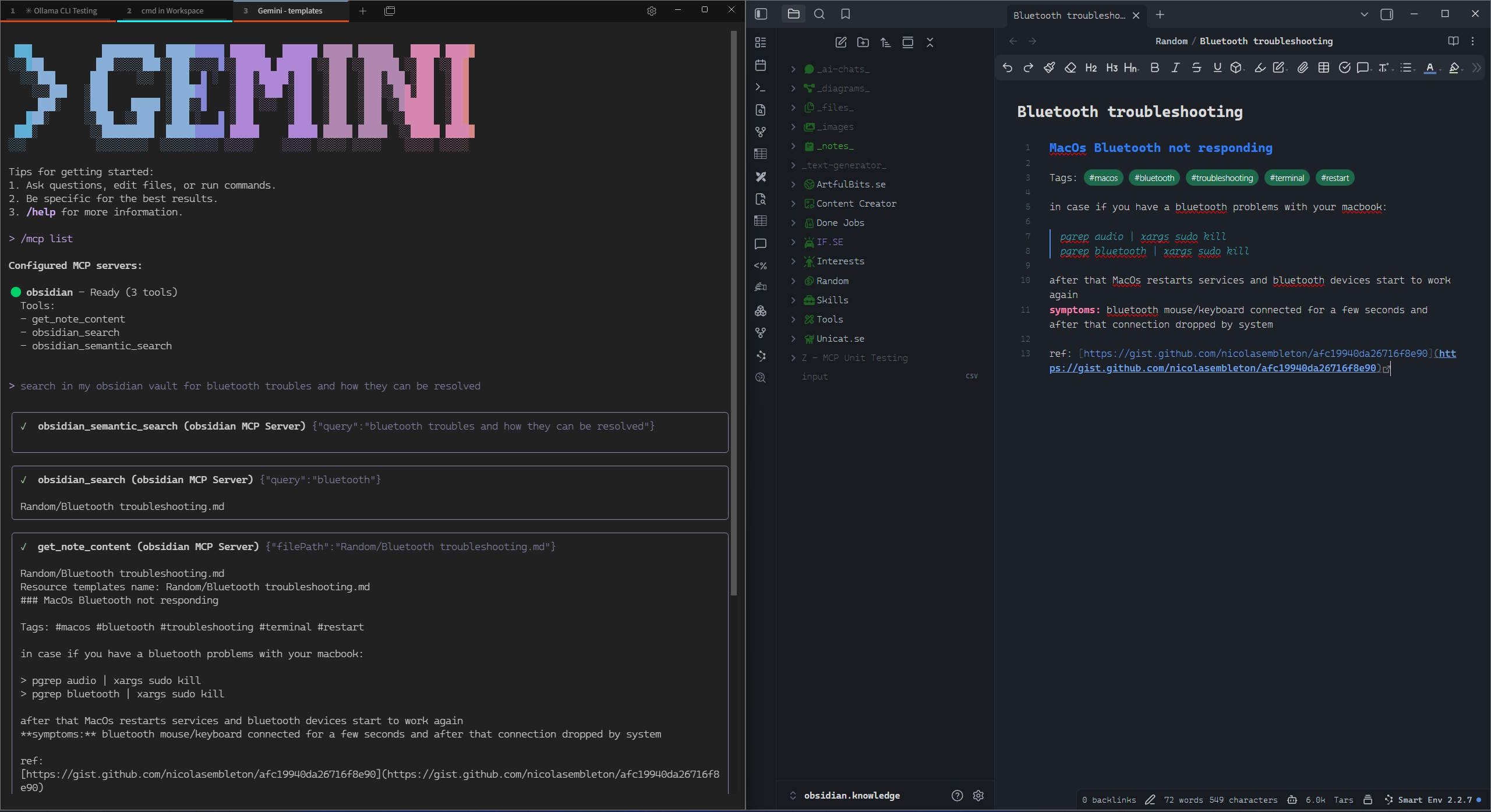
Configure MCP
Multi-URL Configuration (Recommended)
Use API_URLS for automatic failover and self-healing. The server tests all URLs in parallel, selects the fastest one, and automatically reconnects on failure.
{
  "mcpServers": {
    "obsidian": {
      "command": "docker",
      "args": [
        "run",
        "--name", "mcp-obsidian",
        "--rm",
        "-i",  // Keep STDIN open for stdio transport
        "-p", "3000:3000",
        "-e", "API_KEY",
        "-e", "API_URLS",
        "-e", "DEBUG", // for logs
        "ghcr.io/oleksandrkucherenko/obsidian-mcp:latest"
      ],
      "env": {
        "API_KEY": "<secret_key>",
        // JSON array - automatically tests and selects fastest URL
        "API_URLS": "[\"https://127.0.0.1:27124\",\"https://172.26.32.1:27124\",\"https://host.docker.internal:27124\"]",
        "DEBUG": "mcp:*"
      }
    }
  }
}
Self-Healing Features:
- ✅ Parallel URL testing on startup
- ✅ Automatic selection of fastest URL
- ✅ Health monitoring every 30 seconds
- ✅ Automatic failover on connection loss
- ✅ Exponential backoff to prevent thrashing
Available transports:
stdio- Standard input/output (default, best for local MCP clients)http- HTTP JSON-RPC with SSE streaming (best for remote access)
WSL2 Example:
# Automatically determine WSL gateway IP
export WSL_GATEWAY_IP=$(ip route show | grep -i default | awk '{ print $3}')

# Configure with multiple fallback URLs
API_URLS='["https://127.0.0.1:27124", "https://'$WSL_GATEWAY_IP':27124", "https://host.docker.internal:27124"]'
HTTP Transport Configuration
The MCP server supports HTTP transport for remote access with automatic URL failover:
{
  "mcpServers": {
    "obsidian-http": {
      "command": "docker",
      "args": [
        "run",
        "--name", "mcp-obsidian-http",
        "--rm",
        "-p", "3000:3000",
        "-e", "API_KEY",
        "-e", "API_URLS",
        "-e", "MCP_HTTP_PATH",
        "ghcr.io/oleksandrkucherenko/obsidian-mcp:latest"
      ],
      "env": {
        "API_KEY": "<secret_key>",
        "API_URLS": "[\"https://127.0.0.1:27124\",\"https://172.26.32.1:27124\",\"https://host.docker.internal:27124\"]",
        "MCP_HTTP_PATH": "/mcp" // endpoint path (default is: /mcp)
      }
    }
  }
}
Decoupled Configuration with Authentication
# Automatically determine WSL gateway IP
export WSL_GATEWAY_IP=$(ip route show | grep -i default | awk '{ print $3}')

# Configure with multiple fallback URLs
API_URLS='["https://127.0.0.1:27124", "https://'$WSL_GATEWAY_IP':27124", "https://host.docker.internal:27124"]'

# run MCP server on docker separately from IDE
docker run --name mcp-obsidian-http --rm \
  -p 3000:3000 \
  -e API_KEY="<secret_key>" \
  -e API_URLS="${API_URLS}" \
  -e MCP_HTTP_TOKEN=<your-secret-token-here> \
  ghcr.io/oleksandrkucherenko/obsidian-mcp:latest
{
  "mcpServers": {
    "obsidian": {
      "type": "streamable-http",
      "url": "http://localhost:3000/mcp",
      "headers": {
        "Authorization": "Bearer <your-secret-token-here>"
      }
    }
  }
}
Clients must include the Authorization header:
Authorization: Bearer your-secret-token-here
Stdio Transport Configuration
For local development with stdio transport (default):
{
  "mcpServers": {
    "obsidian": {
      "command": "docker",
      "args": [
        "run",
        "--name", "mcp-obsidian-windsurf",
        "--interactive",
        "--rm",
        "-e", "API_KEY",
        "-e", "API_URLS",
        "-e", "DEBUG",
        "ghcr.io/oleksandrkucherenko/obsidian-mcp:latest"
      ],
      "env": {
        "API_KEY": "<secret_key>",
        "API_URLS": "[\"https://127.0.0.1:27124\",\"https://172.26.32.1:27124\"]",
        "DEBUG": "mcp:*" // default: disabled logs
      }
    }
  }
}
-
--rm- Automatically remove the container and its associated anonymous volumes when it exits -
-i, --interactive- Keep STDIN open -
-e, --env- Set environment variables -
--name string- Assign a name to the container -
-p, --publish- Publish container port to host
Legacy Single-URL Configuration
For backward compatibility, you can still use single-URL configuration with API_HOST and API_PORT:
{
  "mcpServers": {
    "obsidian": {
      "command": "docker",
      "args": [
        "run",
        "--name", "mcp-obsidian",
        "--rm",
        "-i",
        "-e", "API_KEY",
        "-e", "API_HOST",
        "-e", "API_PORT",
        "ghcr.io/oleksandrkucherenko/obsidian-mcp:latest"
      ],
      "env": {
        "API_KEY": "<secret_key>",
        "API_HOST": "https://172.26.32.1",  // single URL without failover
        "API_PORT": "27124"
      }
    }
  }
}
Note: Single-URL configuration does not provide automatic failover or health monitoring. Use API_URLS for production deployments.
Health Endpoint
When HTTP transport is enabled, the server exposes a health check endpoint at /health:
curl http://localhost:3000/health
Response:
{
  "status": "healthy",
  "timestamp": "2025-01-12T12:00:00.000Z",
  "transport": "http",
  "authEnabled": false
}
For comprehensive health status including Obsidian API connection and all transports, you can use the getHealthStatus() function which returns:
{
  "healthy": true,
  "obsidian": {
    "connected": true,
    "url": "https://obsidian:27124",
    "lastCheck": 1705065600000
  },
  "transports": {
    "stdio": { "running": true, "enabled": true },
    "http": { "running": true, "enabled": true }
  },
  "uptime": 3600,
  "timestamp": 1705065600000
}
CLI Tools Configuration
This section shows how to configure popular AI CLI tools to use the MCP Obsidian server.
# MacOs or Linux
curl -fsSL https://bun.sh/install | bash

# Windows
powershell -c "irm bun.sh/install.ps1 | iex"
Claude Code CLI
Docker:
# Create mcp.json configuration
cat > mcp.json << 'EOF'
{
  "mcpServers": {
    "obsidian": {
      "command": "docker",
      "args": ["run", "--rm", "-i", "-e", "API_KEY", "-e", "API_URLS", "ghcr.io/oleksandrkucherenko/obsidian-mcp:latest"],
      "env": {
        "API_KEY": "<your-obsidian-api-key>",
        "API_URLS": "[\"https://host.docker.internal:27124\"]"
      }
    }
  }
}
EOF

# Run Claude with MCP config
claude --mcp-config ./mcp.json
NPX/Bunx:
cat > mcp.json << 'EOF'
{
  "mcpServers": {
    "obsidian": {
      "command": "bunx",
      "args": ["-y", "@oleksandrkucherenko/mcp-obsidian"],
      "env": {
        "API_KEY": "<your-obsidian-api-key>",
        "API_URLS": "[\"https://127.0.0.1:27124\"]"
      }
    }
  }
}
EOF

claude --mcp-config ./mcp.json
Gemini CLI
Docker:
gemini mcp add \
  -e API_KEY=<your-obsidian-api-key> \
  -e API_URLS='["https://host.docker.internal:27124"]' \
  obsidian \
  docker run --rm -i ghcr.io/oleksandrkucherenko/obsidian-mcp:latest
NPX/Bunx:
gemini mcp add \
  -e API_KEY=<your-obsidian-api-key> \
  -e API_URLS='["https://127.0.0.1:27124"]' \
  obsidian \
  bunx -y @oleksandrkucherenko/mcp-obsidian
HTTP Transport (remote server):
gemini mcp add --transport http obsidian-http http://localhost:3000/mcp
List and manage servers:
gemini mcp list
gemini mcp remove obsidian
OpenCode CLI
Create opencode.json in your project root:
Docker:
{
  "mcp": {
    "obsidian": {
      "type": "local",
      "command": ["docker", "run", "--rm", "-i",
        "-e", "API_KEY", "-e", "API_URLS",
        "ghcr.io/oleksandrkucherenko/obsidian-mcp:latest"],
      "environment": {
        "API_KEY": "{env:API_KEY}",
        "API_URLS": "[\"https://host.docker.internal:27124\"]"
      },
      "enabled": true
    }
  }
}
NPX/Bunx:
{
  "mcp": {
    "obsidian": {
      "type": "local",
      "command": ["bunx", "-y", "@oleksandrkucherenko/mcp-obsidian"],
      "environment": {
        "API_KEY": "{env:API_KEY}",
        "API_URLS": "[\"https://127.0.0.1:27124\"]"
      },
      "enabled": true
    }
  }
}
HTTP Transport:
{
  "mcp": {
    "obsidian-http": {
      "type": "remote",
      "url": "http://localhost:3000/mcp",
      "enabled": true
    }
  }
}
Kilo Code CLI
Create .kilocode/mcp.json in your project or ~/.kilocode/cli/global/settings/mcp_settings.json globally:
Docker:
{
  "mcpServers": {
    "obsidian": {
      "command": "docker",
      "args": ["run", "--rm", "-i", "-e", "API_KEY", "-e", "API_URLS",
        "ghcr.io/oleksandrkucherenko/obsidian-mcp:latest"],
      "env": {
        "API_KEY": "<your-obsidian-api-key>",
        "API_URLS": "[\"https://host.docker.internal:27124\"]"
      }
    }
  }
}
NPX/Bunx:
{
  "mcpServers": {
    "obsidian": {
      "command": "bunx",
      "args": ["-y", "@oleksandrkucherenko/mcp-obsidian"],
      "env": {
        "API_KEY": "<your-obsidian-api-key>",
        "API_URLS": "[\"https://127.0.0.1:27124\"]"
      }
    }
  }
}
HTTP Transport:
{
  "mcpServers": {
    "obsidian-http": {
      "type": "streamable-http",
      "url": "http://localhost:3000/mcp",
      "headers": {
        "Authorization": "Bearer <your-token>"
      }
    }
  }
}
Codex CLI
Docker:
# Register MCP server
codex mcp add obsidian \
  --command "docker run --rm -i -e API_KEY -e API_URLS ghcr.io/oleksandrkucherenko/obsidian-mcp:latest" \
  --env API_KEY=<your-obsidian-api-key> \
  --env 'API_URLS=["https://host.docker.internal:27124"]'
NPX/Bunx:
codex mcp add obsidian \
  --command "bunx -y @oleksandrkucherenko/mcp-obsidian" \
  --env API_KEY=<your-obsidian-api-key> \
  --env 'API_URLS=["https://127.0.0.1:27124"]'
GitHub Copilot CLI
Create ~/.copilot/mcp-config.json (or .copilot/mcp-config.json in repo root):
Docker:
{
  "mcpServers": {
    "obsidian": {
      "type": "local",
      "command": "docker",
      "args": ["run", "--rm", "-i", "-e", "API_KEY", "-e", "API_URLS",
        "ghcr.io/oleksandrkucherenko/obsidian-mcp:latest"],
      "env": {
        "API_KEY": "${OBSIDIAN_API_KEY}",
        "API_URLS": "[\"https://host.docker.internal:27124\"]"
      },
      "tools": ["*"]
    }
  }
}
NPX/Bunx:
{
  "mcpServers": {
    "obsidian": {
      "type": "local",
      "command": "bunx",
      "args": ["-y", "@oleksandrkucherenko/mcp-obsidian"],
      "env": {
        "API_KEY": "${OBSIDIAN_API_KEY}",
        "API_URLS": "[\"https://127.0.0.1:27124\"]"
      },
      "tools": ["*"]
    }
  }
}
Note: Copilot CLI v0.0.340+ requires ${VAR} syntax for environment variable expansion. Set OBSIDIAN_API_KEY in your shell before running.
Quick Reference
| CLI Tool | Config File | Docker Support | HTTP Transport |
|---|---|---|---|
| Claude Code | mcp.json | ✅ | ✅ |
| Gemini | settings.json | ✅ | ✅ |
| OpenCode | opencode.json | ✅ | ✅ |
| Kilo Code | .kilocode/mcp.json | ✅ | ✅ |
| Codex | CLI commands | ✅ | ✅ |
| Copilot | ~/.copilot/mcp-config.json | ✅ | ✅ |
For detailed testing and verification, see Manual Testing Guide.
Setup and Troubleshooting
Setup
- Run Obsidian Desktop Application and enable Local REST API in Settings.
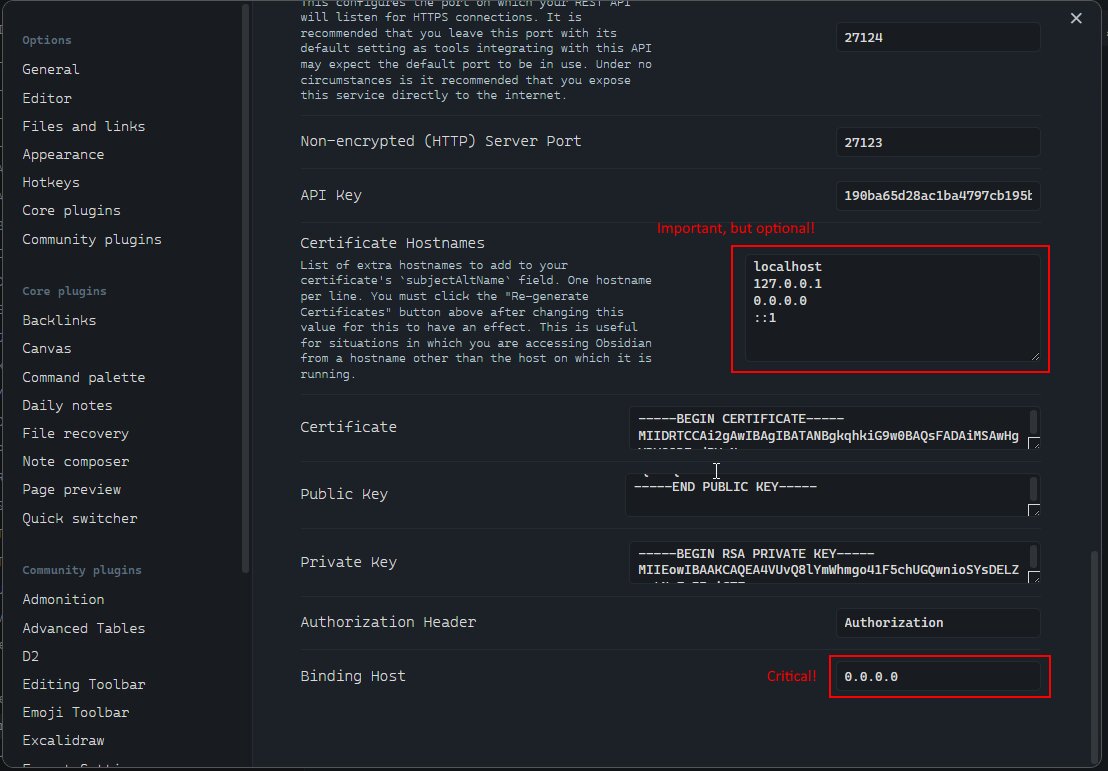
This setting will allow you to connect to the Local REST API from any network interface (not only localhost, which is critical for WSL2 setup).
-
Copy the API Key from Obsidian Settings; you will need it for the MCP configuration.
-
Verify that the Obsidian Local REST API is running and accessible from your machine.
-
Next Step is always to verify the network setup on your machine (firewall rules, etc).
Verify that the Obsidian REST API is running (Windows Host, MacOS, Linux)
Run in Windows CMD terminal:
# windows CMD, verify that port is listening (that rest api is running)
netstat -an | findstr 27124
# Expected output:
#   TCP    0.0.0.0:27124           0.0.0.0:0               LISTENING

# Verify that Obsidian Local REST API is working
curl --insecure https://localhost:27124
wget --no-check-certificate -S https://localhost:27124
http --verify=no https://localhost:27124
Expected REST API response:
{
  "status": "OK",
  "manifest": {
    "id": "obsidian-local-rest-api",
    "name": "Local REST API",
    "version": "3.2.0",
    "minAppVersion": "0.12.0",
    "description": "Get, change or otherwise interact with your notes in Obsidian via a REST API.",
    "author": "Adam Coddington",
    "authorUrl": "https://coddingtonbear.net/",
    "isDesktopOnly": true,
    "dir": ".obsidian/plugins/obsidian-local-rest-api"
  },
  "versions": {
    "obsidian": "1.8.10",
    "self": "3.2.0"
  },
  "service": "Obsidian Local REST API",
  "authenticated": false
}
WSL2, Docker hosted on Ubuntu
graph LR
    subgraph "Windows Machine"
      obs("Obsidian Application")

      subgraph "WSL2"
        subgraph "Ubuntu"
          subgraph "Docker"
            mcp("mcp-obsidian:latest")
          end
        end
      end

      firewall(["Windows Firewall"]) -->|27124| obs

      mcp -->|https://$WSL_GATEWAY_IP:27124| firewall

      IDE -.->|MCP Server Tools| mcp
    end
Run inside the WSL2 Ubuntu Terminal:
export WSL_GATEWAY_IP=$(ip route show | grep -i default | awk '{ print $3}')
echo $WSL_GATEWAY_IP # expected something like: 172.26.32.1

# Verify that Obsidian Local REST API is working
curl --insecure https://$WSL_GATEWAY_IP:27124
wget --no-check-certificate -S https://$WSL_GATEWAY_IP:27124
http --verify=no https://$WSL_GATEWAY_IP:27124
Verify Windows Firewall
Run GUI and Setup Manual The Rules:
# Windows Defender Firewall / Inbound Rules. Press Win+R and type WF.msc or firewall.cpl
WF.msc
firewall.cpl # and then press 'Advanced settings'
Or Run in Windows PowerShell as Administrator:
# Add firewall rule to allow port 27124 (Run in Admin PowerShell)
New-NetFirewallRule -DisplayName "WSL2 Obsidian REST API" -Direction Inbound -LocalPort 27123,27124 -Protocol TCP -Action Allow
Or Run in Windows CMD terminal:
# check firewall rules (CMD) that manage 27124 port
netsh advfirewall firewall show rule name=all | findstr /C:"Rule Name" /C:"LocalPort" /C:"RemotePort" | findstr /C:"27124"

# display rules that has WSL2 keyword in own name
netsh advfirewall firewall show rule name=all | grep -A 13 WSL2

# display rule definition by port number (4 line after, 9 lines before)
netsh advfirewall firewall show rule name=all | grep -A 4 -B 9 27124
Disable/Enable Firewall
Execute in Windows PowerShell as Administrator:
# Temporarily turn off firewall (for testing ONLY, not recommended for regular use)
Set-NetFirewallProfile -Profile Domain,Public,Private -Enabled False

# Restore Firewall state
Set-NetFirewallProfile -Profile Domain,Public,Private -Enabled True
Verify Connectivity on BusyBox Container
These steps allow us to confirm that the network setup is correct and the container can connect to the Local REST API.
Execute inside the WSL2 Ubuntu terminal:
export WSL_GATEWAY_IP=$(ip route | grep default | awk '{print $3}')
echo "Windows host IP from WSL2: $WSL_GATEWAY_IP"
# Output:
#   Windows host IP from WSL2: 172.26.32.1

# run docker container to verify the connectivity from Docker inside
docker run --rm -it --network=host busybox sh

# inside the container run:
which wget
# /bin/wget

export WINDOWS_HOST_IP="172.26.32.1"
echo $WINDOWS_HOST_IP
# 172.26.32.1

# try to connect to the Local REST API
wget -qO- --no-check-certificate "https://$WINDOWS_HOST_IP:27124"
wget -qO- --no-check-certificate https://172.26.32.1:27124
Dockerized Obsidian
Reviews
No reviews yet
Be the first to review this server!
More Productivity MCP Servers
Memory
Freeby Modelcontextprotocol · Productivity
Knowledge graph-based persistent memory across sessions
Time
Freeby Modelcontextprotocol · Productivity
Time and timezone conversion capabilities for your AI assistant
Toleno
Freeby Toleno · Developer Tools
Toleno Network MCP Server — Manage your Toleno mining account with Claude AI using natural language.
mcp-creator-python
Freeby mcp-marketplace · Developer Tools
Create, build, and publish Python MCP servers to PyPI — conversationally.
MCP Marketplace
Freeby mcp-marketplace · Developer Tools
Search and install MCP servers from inside your AI client.
MarkItDown
Freeby Microsoft · Content & Media
Convert files (PDF, Word, Excel, images, audio) to Markdown for LLM consumption