
Server data from the Official MCP Registry
A Model Context Protocol (MCP) server for Uptime Kuma version 2.
About
A Model Context Protocol (MCP) server for Uptime Kuma version 2.
Security Report
This is a well-structured MCP server for Uptime Kuma with thoughtful security design, including credential redaction, input validation, and authentication controls. The codebase demonstrates good defensive practices and clear security documentation. Minor code quality issues (broad exception handling, some input validation edge cases) and one moderate concern about env var exposure in HTTP headers do not significantly impact the overall security posture. Supply chain analysis found 5 known vulnerabilities in dependencies (0 critical, 4 high severity). Package verification found 1 issue.
3 files analyzed · 11 issues found
Security scores are indicators to help you make informed decisions, not guarantees. Always review permissions before connecting any MCP server.
Permissions Required
This plugin requests these system permissions. Most are normal for its category.
What You'll Need
Set these up before or after installing:
Environment variable: UPTIME_KUMA_URL
Environment variable: UPTIME_KUMA_USERNAME
Environment variable: UPTIME_KUMA_PASSWORD
Environment variable: UPTIME_KUMA_2FA_TOKEN
Environment variable: UPTIME_KUMA_JWT_TOKEN
How to Install
Add this to your MCP configuration file:
{
  "mcpServers": {
    "io-github-davidfuchs-mcp-uptime-kuma": {
      "env": {
        "UPTIME_KUMA_URL": "your-uptime-kuma-url-here",
        "UPTIME_KUMA_PASSWORD": "your-uptime-kuma-password-here",
        "UPTIME_KUMA_USERNAME": "your-uptime-kuma-username-here",
        "UPTIME_KUMA_2FA_TOKEN": "your-uptime-kuma-2fa-token-here",
        "UPTIME_KUMA_JWT_TOKEN": "your-uptime-kuma-jwt-token-here"
      },
      "args": [
        "-y",
        "@davidfuchs/mcp-uptime-kuma"
      ],
      "command": "npx"
    }
  }
}Documentation
View on GitHubFrom the project's GitHub README.
mcp-uptime-kuma
A Model Context Protocol (MCP) server for Uptime Kuma version 2. Supports stdio and streamable HTTP transports.









Features
- Real-time Monitoring: Access monitors, heartbeats, uptime, and responsiveness metrics via Socket.IO with instant status change notifications.
- Context-Friendly: Returns only essential data by default to avoid overwhelming LLM context windows.
- Multiple Transports: Supports stdio (local) and streamable HTTP (remote) transports.
Quick Start
Using npx (stdio transport)
Add this to your MCP client configuration:
{
  "mcpServers": {
    "uptime-kuma": {
      "command": "npx",
      "args": ["-y", "@davidfuchs/mcp-uptime-kuma"],
      "env": {
        "UPTIME_KUMA_URL": "http://your-uptime-kuma-instance:3001",
        "UPTIME_KUMA_USERNAME": "your_username",
        "UPTIME_KUMA_PASSWORD": "your_password"
      }
    }
  }
}
Using Docker (streamable HTTP transport)
Option 1: Docker Run
docker run -d \
  --name mcp-uptime-kuma \
  -p 3000:3000 \
  -e UPTIME_KUMA_URL=http://your-uptime-kuma-instance:3001 \
  -e UPTIME_KUMA_USERNAME=your_username \
  -e UPTIME_KUMA_PASSWORD=your_password \
  davidfuchs/mcp-uptime-kuma:latest \
  -t streamable-http
Option 2: Docker Compose
A docker-compose.yml file is provided in the repository. Download it, configure your environment variables, and run:
docker compose up -d
Then configure your MCP client to connect to the endpoint:
{
  "mcpServers": {
    "uptime-kuma": {
      "url": "http://localhost:3000/mcp"
    }
  }
}
See Authentication Methods for JWT token and anonymous authentication options.
The endpoint above is unauthenticated. Anyone who can reach port 3000 gets full read/write control of your Uptime Kuma instance. See Securing the HTTP Endpoint before exposing it beyond localhost.
Example Conversation
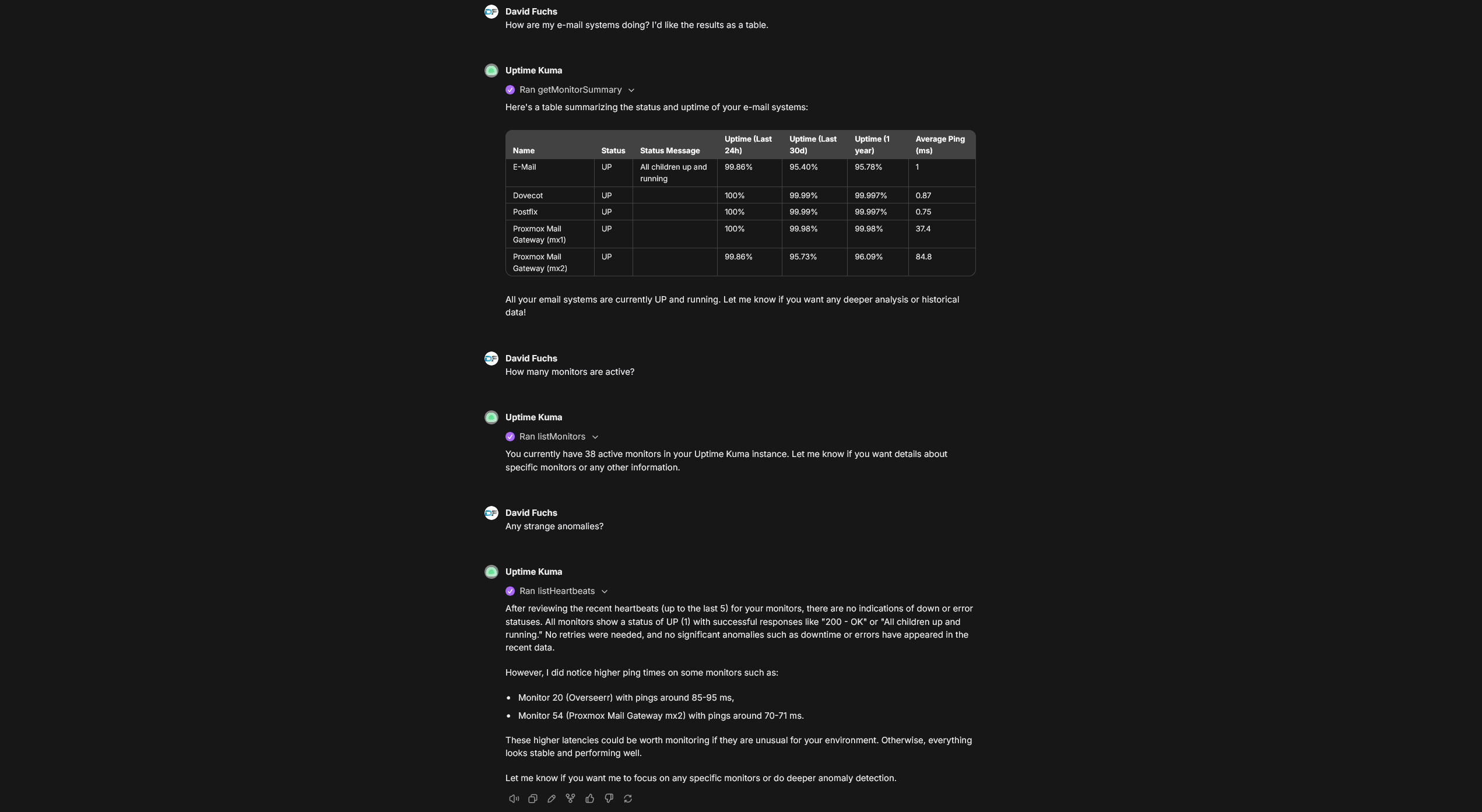 Conversation in LibreChat where the
 mcp-uptime-kuma server is providing real-time information from Uptime Kuma.
Available Tools
Monitors
| Tool | Purpose |
|---|---|
getMonitorSummary | Get a quick overview of all monitors with their current status. Supports filtering. |
listMonitors | Get the full list of all monitors with configurations. Supports filtering. |
listMonitorTypes | Get all available monitor types supported by Uptime Kuma. |
getMonitor | Get detailed configuration for a specific monitor by ID. |
createMonitor | Create a new monitor (requires name and type at minimum). |
updateMonitor | Update an existing monitor's configuration. |
deleteMonitor | Permanently delete a monitor and all its heartbeat history. |
pauseMonitor | Pause a monitor to stop performing checks. |
resumeMonitor | Resume a paused monitor to restart checks. |
Heartbeats
| Tool | Purpose |
|---|---|
listHeartbeats | Get status check history for all monitors. |
getHeartbeats | Get status check history for a specific monitor. |
Notifications
| Tool | Purpose |
|---|---|
listNotifications | List all configured notification channels (Slack, Discord, email, webhooks, etc.). |
addNotification | Create a new notification channel. |
updateNotification | Update an existing notification channel. |
deleteNotification | Permanently delete a notification channel. |
Tags
| Tool | Purpose |
|---|---|
listTags | List all tags defined in Uptime Kuma. |
addTag | Create a new tag that can be assigned to monitors. |
deleteTag | Permanently delete a tag (removes it from all monitors). |
Maintenance
| Tool | Purpose |
|---|---|
getMaintenanceWindows | List all scheduled maintenance windows. |
createMaintenance | Schedule a new maintenance window. |
Status Pages & Settings
| Tool | Purpose |
|---|---|
listStatusPages | List all configured status pages. |
getSettings | Get Uptime Kuma server settings. |
Filtering
getMonitorSummary and listMonitors support filtering by:
- keywords: Space-separated keywords for fuzzy matching against monitor pathNames
- type: Monitor type(s), comma-separated (e.g.,
"http","http,ping,dns") - active: Filter by active (
true) or inactive (false) monitors - maintenance: Filter by maintenance mode status
- tags: Tag name and optional value, comma-separated (e.g.,
"production","env=staging") - parentId: Group monitor ID, returning that group's direct children. Pass
nullfor top-level monitors (those with no parent). Not recursive — to walk deeper, use each child group's ownchildrenIDs. - status (getMonitorSummary only): Heartbeat status (
"0"=DOWN,"1"=UP,"2"=PENDING,"3"=MAINTENANCE)
Examples:
getMonitorSummary({ status: "0" })                     // All DOWN monitors
getMonitorSummary({ type: "http", maintenance: true }) // HTTP monitors in maintenance
getMonitorSummary({ parentId: 12, status: "0" })       // What's down inside group 12
listMonitors({ tags: "production,region=us-east" })    // Monitors with specific tags
listMonitors({ parentId: 12 })                         // Direct children of group 12
listMonitors({ parentId: null })                       // Top-level monitors only
Authentication Methods
Anonymous Authentication
If authentication is disabled on your Uptime Kuma instance, only UPTIME_KUMA_URL is required.
Username/Password Authentication
UPTIME_KUMA_URL=http://your-instance:3001
UPTIME_KUMA_USERNAME=your_username
UPTIME_KUMA_PASSWORD=your_password
UPTIME_KUMA_2FA_TOKEN=123456  # Optional, only if 2FA is enabled
JWT Token Authentication
Recommended for 2FA users. Takes precedence over username/password if both are provided.
UPTIME_KUMA_URL=http://your-instance:3001
UPTIME_KUMA_JWT_TOKEN=your_jwt_token
Obtaining Your JWT Token
Using the CLI utility (recommended):
npx -p @davidfuchs/mcp-uptime-kuma mcp-uptime-kuma-get-jwt http://localhost:3001 admin mypassword
Using Docker:
docker run --rm davidfuchs/mcp-uptime-kuma:latest get-jwt http://host.docker.internal:3001 admin mypassword
From browser: Open Developer Tools → Storage/Application → Local Storage → find token key.
Securing the HTTP Endpoint
Applies to -t streamable-http only. The stdio transport has no listener to protect and
takes its credentials from the environment, as the MCP specification prescribes.
Anyone who can reach /mcp has full read/write control of your Uptime Kuma instance,
including deleting monitors. Two settings guard it, and both default to permissive so that
upgrading cannot break an existing deployment - the server warns at startup in that state.
| Variable | Default | Purpose |
|---|---|---|
MCP_AUTH_TOKEN | unset (no authentication) | Shared secret that callers must present as Authorization: Bearer <token>. Anything else gets 401. |
ALLOWED_ORIGIN | * (no validation) | Comma-separated list of browser origins permitted to call /mcp. A request whose Origin is not listed gets 403. Requests with no Origin header (every native MCP client) are always allowed. |
HOST | 0.0.0.0 | Address to bind. Set to 127.0.0.1 when running locally outside a container. |
PORT | 3000 | Port to listen on. |
/health is deliberately left unauthenticated so container healthchecks and load balancer
probes keep working. It reports nothing but liveness.
Setting a token
Generate a high-entropy secret - this is a password, and it is compared in constant time, so length is the only thing protecting it:
openssl rand -base64 32
docker run -d \
  --name mcp-uptime-kuma \
  -p 3000:3000 \
  -e UPTIME_KUMA_URL=http://your-uptime-kuma-instance:3001 \
  -e UPTIME_KUMA_JWT_TOKEN=your_jwt_token \
  -e MCP_AUTH_TOKEN=your_generated_secret \
  davidfuchs/mcp-uptime-kuma:latest \
  -t streamable-http
Clients then send it as a header:
{
  "mcpServers": {
    "uptime-kuma": {
      "url": "http://localhost:3000/mcp",
      "headers": {
        "Authorization": "Bearer your_generated_secret"
      }
    }
  }
}
Why Origin validation matters separately
A shared secret stops anyone who cannot present it. It does not stop a website your browser
already trusts. Under a DNS rebinding attack a page on evil.example resolves its own
hostname to 127.0.0.1, so the browser treats requests to your local server as same-origin
- no preflight happens and CORS never applies. The server comparing the
Originheader it was sent against a list of expected origins is the only check left standing, which is why the MCP specification makes it a MUST rather than a SHOULD.
If you only use native clients, leaving ALLOWED_ORIGIN unset costs you nothing; those
clients send no Origin header. If you use a browser-based client, list its origin:
ALLOWED_ORIGIN=https://librechat.example.com,http://localhost:5173
Credential Redaction
Read tools return *** in place of secrets rather than the values themselves.
Uptime Kuma's socket API returns configuration verbatim - its web UI masks credentials at render time. That is fine for a browser and not fine for an MCP server, whose output lands in an LLM's context window and is then persisted in conversation transcripts, logs and synced history. Asking "what am I monitoring?" should not write a live SMTP password or a third-party API key into storage you may not control.
What is withheld:
| Tool | Withheld |
|---|---|
listNotifications | everything in config except type/name/isDefault/applyExisting. The withheld field names are listed in redactedConfigKeys |
listMonitors, getMonitor | pushToken, basic_auth_pass, bearer_token, oauth_client_secret, radiusPassword, radiusSecret, mqttPassword, rabbitmqPassword, tlsCert/tlsKey/tlsCa, databaseConnectionString, headers, grpcMetadata, plus anything matching `/pass |
listDockerHosts | user:password@ inside a dockerDaemon URL |
getHeartbeats, listHeartbeats | any column Uptime Kuma returns beyond the declared heartbeat fields (e.g. response, which can carry a service's response body) is dropped, and user:password@ inside a URL quoted in the status message is scrubbed |
getSettings | any secret-named field Uptime Kuma returns (e.g. steamAPIKey) |
getMonitorSummary | nothing - it returns no credentials to begin with |
hostname, port, url, authMethod, oauth_token_url, oauth_scopes and usernames stay
visible: hiding useful configuration is how a redaction feature gets switched off.
To get the real values, either pass includeSecrets: true on the call:
listNotifications({ includeSecrets: true })
or enable it globally:
UPTIME_KUMA_INCLUDE_SECRETS=true
The per-call parameter wins over the environment variable in both directions, so a permissive deployment can still ask one call to redact.
Writing *** back is safe. updateMonitor and updateNotification restore the stored
value when a field arrives as the marker, and report which fields they preserved. This
matters most for updateNotification: Uptime Kuma replaces the notification row rather than
merging it, so without this a read-edit-write round trip would replace a working password
with three asterisks. If there is no stored value to restore, the call fails rather than
writing a credential that looks set and cannot work.
updateDockerHost gets the same protection for the credentials embedded in a dockerDaemon
URL: a http://***:***@host:2375 read back from listDockerHosts has its userinfo restored
from the stored URL rather than persisted verbatim, so repointing a host without re-entering
its credentials does not wipe them.
The MCP logging channel gets the same rule. The debug log for a live heartbeat reports the
monitored service's status message by length only (msgLength=...), never its content, since
that message can echo a target URL with an embedded user:password@ or a slice of a response
body, and on the stdio transport those log notifications reach the client.
LibreChat Configuration
stdio transport:
mcpServers:
  uptime-kuma:
    command: npx
    args: ["-y", "@davidfuchs/mcp-uptime-kuma"]
    env:
      UPTIME_KUMA_URL: "http://your-instance:3001"
      UPTIME_KUMA_USERNAME: "your_username"
      UPTIME_KUMA_PASSWORD: "your_password"
    serverInstructions: true
streamable HTTP transport:
Update the allowed domains to whatever domain you're using in the URL (e.g., localhost or host.docker.internal for Docker setups):
mcpServers:
  uptime-kuma:
    type: streamable-http
    url: "http://mcp-uptime-kuma:3000/mcp"
    serverInstructions: true

mcpSettings:
  allowedDomains:
    - 'mcp-uptime-kuma'
Contributing
For development setup, building, testing, and project structure, see CONTRIBUTING.md.
Learn More
Security
To report a vulnerability, please see SECURITY.md.
Disclaimer
This is a personal, free, open-source side project provided "as is" under the MIT License, without warranty of any kind. You install and run it yourself, and it connects to an Uptime Kuma instance that you control. The author is not responsible for any damage, data loss, downtime, or other consequences arising from its use. Use at your own risk.
License
Licensed under the MIT License.
Reviews
No reviews yet
Be the first to review this server!
More Developer Tools MCP Servers
Fetch
Freeby Modelcontextprotocol · Developer Tools
Web content fetching and conversion for efficient LLM usage
Git
Freeby Modelcontextprotocol · Developer Tools
Read, search, and manipulate Git repositories programmatically
Toleno
Freeby Toleno · Developer Tools
Toleno Network MCP Server — Manage your Toleno mining account with Claude AI using natural language.
mcp-creator-python
Freeby mcp-marketplace · Developer Tools
Create, build, and publish Python MCP servers to PyPI — conversationally.
MCP Marketplace
Freeby mcp-marketplace · Developer Tools
Search and install MCP servers from inside your AI client.
MarkItDown
Freeby Microsoft · Content & Media
Convert files (PDF, Word, Excel, images, audio) to Markdown for LLM consumption