Server data from the Official MCP Registry
One MCP connection for all your tools — with discovery, namespacing, and execution policies.
Valid MCP server (2 strong, 1 medium validity signals). No known CVEs in dependencies. Package registry verified. Imported from the Official MCP Registry.
3 files analyzed · 1 issue found
Security scores are indicators to help you make informed decisions, not guarantees. Always review permissions before connecting any MCP server.
Add this to your MCP configuration file:
{
"mcpServers": {
"io-github-crabeye-ai-crabeye-mcp-bridge": {
"args": [
"-y",
"@crabeye-ai/crabeye-mcp-bridge"
],
"command": "npx"
}
}
}From the project's GitHub README.
One MCP connection for all your tools — with discovery, namespacing, and execution policies.
Every MCP server you add to your AI assistant means another connection, another set of tool definitions injected into the context window, and no way to search or control them centrally. Wire up ten servers with a hundred tools each and your assistant is burning tokens on a thousand tool schemas before the conversation even starts — most of which it will never call.
crabeye-mcp-bridge consolidates all your upstream MCP servers behind a single STDIO interface and exposes exactly two tools to the assistant: search_tools and run_tool. Tools from every server are discovered, namespaced, and indexed at startup, but none of them touch the context window until the assistant actually searches for them. You can have a thousand tools ready to go without bloating the context, with fuzzy search to find them and per-tool execution policies to control what runs freely, what needs approval, and what is blocked.
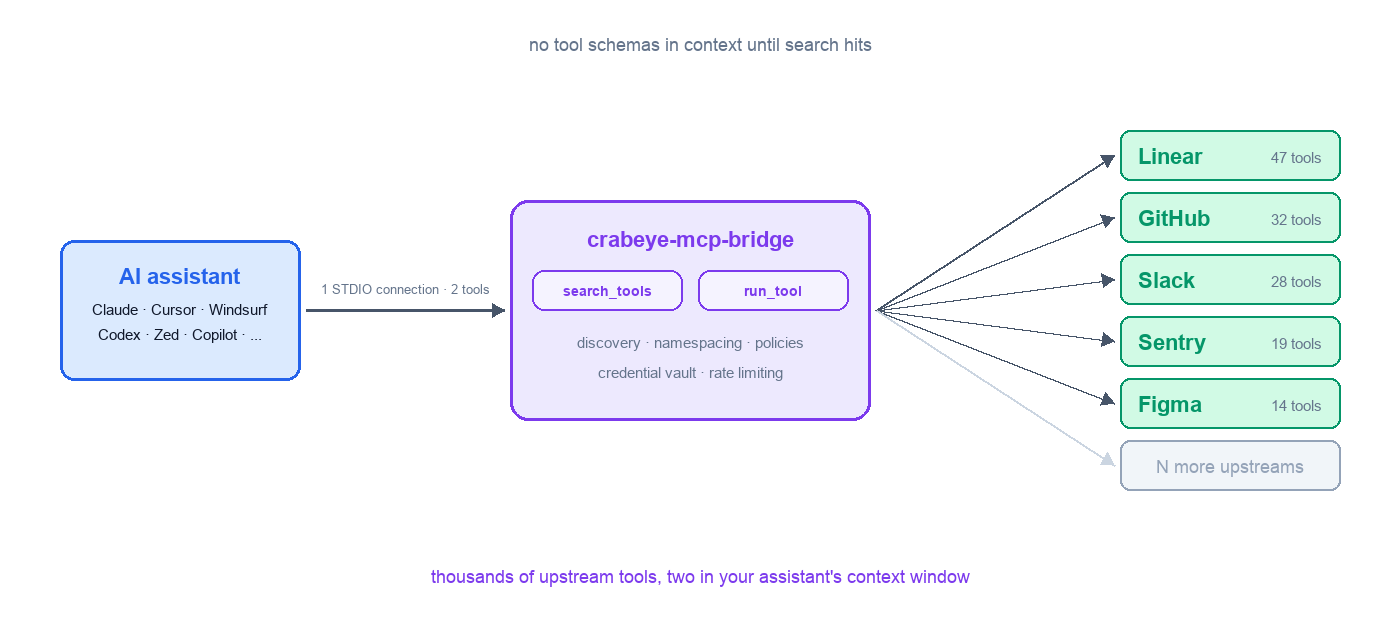
%%{init: {'flowchart': {'nodeSpacing': 25, 'rankSpacing': 70}}}%%
flowchart LR
classDef client fill:#dbeafe,stroke:#2563eb,stroke-width:2px
classDef bridge fill:#ede9fe,stroke:#7c3aed,stroke-width:3px
classDef server fill:#d1fae5,stroke:#059669,stroke-width:2px
classDef more fill:#f1f5f9,stroke:#64748b,stroke-width:2px,stroke-dasharray:5 5
A["AI Assistant<br/>(Claude, Cursor, Windsurf, ...)"]:::client
A -- "1 STDIO connection<br/>2 tools exposed" --> B
B["crabeye-mcp-bridge<br/>search_tools + run_tool"]:::bridge
B -- STDIO --> C["Linear<br/>47 tools"]:::server
B -- STDIO --> D["GitHub<br/>32 tools"]:::server
B -- HTTP --> E["Slack<br/>28 tools"]:::server
B -- SSE --> F["Sentry<br/>19 tools"]:::server
B -.-> G["N more<br/>servers"]:::more
The fastest way to get started is with init, which discovers your MCP client configs and sets up the bridge automatically:
npx @crabeye-ai/crabeye-mcp-bridge init
This scans for config files from Claude Desktop, Cursor, VS Code Copilot, Windsurf, and Zed, lets you pick which ones to use, and optionally injects the bridge entry. After that, just run npx @crabeye-ai/crabeye-mcp-bridge — no --config flag needed.
To undo, run npx @crabeye-ai/crabeye-mcp-bridge restore.
If you prefer to set things up manually, say your MCP client config looks like this today:
{
"mcpServers": {
"linear": {
"command": "npx",
"args": ["-y", "@anthropic/linear-mcp-server"]
},
"github": {
"command": "npx",
"args": ["-y", "@anthropic/github-mcp-server"],
"env": {
"GITHUB_TOKEN": "ghp_..."
}
}
}
}
First, store your secrets in the encrypted credential store:
crabeye-mcp-bridge credential set github-pat ghp_abc123
Then rename mcpServers to upstreamMcpServers, add the bridge, and replace hardcoded tokens with ${credential:key} references:
{
"mcpServers": {
"bridge": {
"command": "npx",
"args": ["-y", "@crabeye-ai/crabeye-mcp-bridge", "--config", "/path/to/this/file.json"]
}
},
"upstreamMcpServers": {
"linear": {
"command": "npx",
"args": ["-y", "@anthropic/linear-mcp-server"]
},
"github": {
"command": "npx",
"args": ["-y", "@anthropic/github-mcp-server"],
"env": {
"GITHUB_TOKEN": "${credential:github-pat}"
}
}
}
}
That's it. Your AI assistant now has access to all tools from all configured servers through a single connection. The bridge automatically excludes itself from mcpServers to avoid recursion, so pointing --config at the same file is safe.
The bridge also reads upstreamServers (shorthand), servers (VS Code Copilot), and context_servers (Zed) as input keys. On duplicate names, earlier sources win: upstreamMcpServers > upstreamServers > servers > context_servers > mcpServers. Self-exclusion applies to mcpServers and context_servers.
Alternatively, you can add the bridge alongside your existing mcpServers entries without renaming anything:
{
"mcpServers": {
"bridge": {
"command": "npx",
"args": ["-y", "@crabeye-ai/crabeye-mcp-bridge", "--config", "/path/to/this/file.json"]
},
"linear": {
"command": "npx",
"args": ["-y", "@anthropic/linear-mcp-server"]
},
"github": {
"command": "npx",
"args": ["-y", "@anthropic/github-mcp-server"],
"env": {
"GITHUB_TOKEN": "${credential:github-pat}"
}
}
}
}
The bridge will pick up the other servers from mcpServers automatically (excluding itself). This makes it easier to see at a glance in your client which MCP servers are configured. However, you'll want to disable the other MCP servers in your client so the assistant uses the bridge as the single entry point rather than calling them directly, otherwise it defeats the purpose of using this tool.
You can, of course, also use a completely different config file for the bridge. It will work as long as you add the bridge to your client's MCP config.
On startup the bridge launches every configured upstream server, connects to it, and discovers its tools. Each tool is namespaced by server name (e.g. linear__create_issue, github__list_repos) so tools from different servers never collide.
Two meta-tools are exposed to the AI assistant:
search_tools — Fuzzy-search across all discovered tools by name, description, provider, or category. Matching tools are automatically enabled for use.run_tool — Execute any discovered tool directly by its namespaced name (e.g. linear__create_issue).The AI assistant calls search_tools automatically when it detects a relevant intent, then uses run_tool or calls the auto-enabled tools directly.
When search_tools is called, the assistant receives the matching tools and their input schemas. The bridge also directly exposes the searched tools to the assistant so they can be called natively. Some assistants don't refresh their tool list mid-session, so they may not see the newly exposed tools — but they can still call them through run_tool and the call is executed exactly as if made directly on the original tool.
The bridge tracks how many tokens it saves compared to exposing all upstream tool definitions directly. Token savings are always logged to stderr after each search. To also include them in search_tools responses, pass --stats:
{
"session_stats": {
"tokens_saved": 11200,
"baseline_tokens": 14200,
"bridge_tokens": 3000
},
"results": [...]
}
baseline_tokens — estimated tokens if all upstream tool definitions were injected into context without the bridgebridge_tokens — cumulative tokens used by the bridge's two meta-tools plus all search results returned so fartokens_saved — the difference (baseline − bridge)Token counts are estimated using a chars/4 heuristic.
The assistant starts by searching for providers to see what's available. Without a tool filter, provider summaries are returned — name, category, and tool count, but no tool details:
{
"name": "search_tools",
"arguments": {
"queries": [{ "provider": "linear" }]
}
}
Response:
{
"results": [
{
"providers": [
{
"name": "linear",
"category": "project management",
"tool_count": 47,
"tools": []
}
],
"total": 47,
"count": 0,
"offset": 0,
"limit": 10
}
]
}
To get full tool definitions, add expand_tools: true or use a tool filter to drill in:
{
"name": "search_tools",
"arguments": {
"queries": [{ "provider": "linear", "expand_tools": true }]
}
}
The assistant calls search_tools with a tool filter to find specific tools by name or description. Results are grouped by provider:
{
"name": "search_tools",
"arguments": {
"queries": [{ "tool": "create issue" }]
}
}
The bridge returns matching tools with their full input schemas, grouped by provider:
{
"results": [
{
"providers": [
{
"name": "linear",
"category": "project management",
"tool_count": 47,
"tools": [
{
"tool_name": "linear__create_issue",
"source": "linear",
"description": "Create a new Linear issue",
"input_schema": {
"type": "object",
"properties": {
"title": { "type": "string" },
"team": { "type": "string" },
"description": { "type": "string" }
},
"required": ["title", "team"]
}
}
]
},
{
"name": "github",
"tool_count": 32,
"tools": [
{
"tool_name": "github__create_issue",
"source": "github",
"description": "Create a GitHub issue",
"input_schema": { "..." }
}
]
}
],
"total": 2,
"count": 2,
"offset": 0,
"limit": 10
}
]
}
Matching tools are automatically enabled for direct use by the assistant — no extra step needed.
Pass multiple query objects to search for different things in a single call. Results are deduplicated across queries — first query wins. Summary and detail queries can be mixed:
{
"name": "search_tools",
"arguments": {
"queries": [
{ "tool": "create issue" },
{ "provider": "github" },
{ "category": "design", "expand_tools": true }
]
}
}
The first query returns tool details (has tool filter), the second returns a provider summary, and the third returns expanded tool details for design tools. Each query produces its own result set with independent pagination.
If the assistant already knows the namespaced name, it can skip the search and call run_tool directly:
{
"name": "run_tool",
"arguments": {
"name": "linear__create_issue",
"arguments": {
"title": "Fix login crash",
"team": "Engineering",
"description": "The app crashes on login when the session token is expired"
}
}
}
The response is passed through exactly as the upstream server returns it.
Combine a tool search with a provider filter to narrow results:
{
"name": "search_tools",
"arguments": {
"queries": [{ "tool": "list", "provider": "github" }]
}
}
Only tools from the github server matching "list" are returned, grouped under the github provider. Provider matching uses prefix match by default ("git" matches "github", but "hub" does not).
For precise matching, prefix the tool query with regex::
{
"name": "search_tools",
"arguments": {
"queries": [{ "tool": "regex:^list_" }]
}
}
This finds all tools whose name starts with list_ — across every server.
Servers that run as local subprocesses:
{
"upstreamMcpServers": {
"my-server": {
"command": "node",
"args": ["./server.js"],
"env": { "API_KEY": "..." }
}
}
}
Remote servers accessible via HTTP:
{
"upstreamMcpServers": {
"remote-server": {
"url": "https://mcp.example.com/sse",
"type": "sse",
"headers": { "Authorization": "Bearer ..." }
}
}
}
type defaults to "streamable-http". Use "sse" for servers that use Server-Sent Events transport.
Assign a category to a server so tools can be discovered by domain rather than server name:
{
"upstreamMcpServers": {
"linear": {
"command": "npx",
"args": ["-y", "@anthropic/linear-mcp-server"],
"_bridge": {
"category": "project management"
}
},
"figma": {
"command": "npx",
"args": ["-y", "@anthropic/figma-mcp-server"],
"_bridge": {
"category": "design"
}
}
}
}
The assistant can then search by category: { "queries": [{ "category": "design" }] }. Category matching uses prefix match by default, so "project" matches "project management". Use regex: prefix for pattern matching.
Secrets belong in the encrypted credential store, not in config files. Store a secret once, then reference it with ${credential:key} in env or headers:
# Store credentials
crabeye-mcp-bridge credential set github-pat ghp_abc123
crabeye-mcp-bridge credential set remote-api-key sk_live_xyz
{
"upstreamMcpServers": {
"github": {
"command": "npx",
"args": ["-y", "@anthropic/github-mcp-server"],
"env": { "GITHUB_TOKEN": "${credential:github-pat}" }
},
"remote-api": {
"url": "https://mcp.example.com/sse",
"type": "sse",
"headers": { "Authorization": "Bearer ${credential:remote-api-key}" }
}
}
}
Templates are resolved on every connect and reconnect, so rotating a credential takes effect without restarting the bridge.
How it works: Credentials are encrypted with AES-256-GCM. The master key is stored in your OS keychain (macOS Keychain, Linux secret-tool, Windows Credential Manager). Set MCP_BRIDGE_MASTER_KEY (64 hex chars) to use a static key instead.
CLI commands:
| Command | Description |
|---|---|
credential set <key> [value] | Store a plain string secret |
credential set <key> --json '<json>' | Store a typed credential (bearer/oauth2/secret) |
credential get <key> | Retrieve a credential (masked by default, --show-secret for full) |
credential delete <key> | Delete a stored credential |
credential list | List all stored credential keys |
Pipe-friendly: echo "ghp_abc123" | crabeye-mcp-bridge credential set github-pat
Control which tools can run automatically, require confirmation, or are blocked entirely. Three policy values:
"always" — tool runs without confirmation (default)"prompt" — user is asked to approve each call via MCP elicitation"never" — tool is disabled and cannot be calledPolicies cascade in this order (first match wins):
_bridge.tools.<toolName>)_bridge.toolPolicy)_bridge.toolPolicy)"always"{
"upstreamMcpServers": {
"linear": {
"command": "npx",
"args": ["-y", "@anthropic/linear-mcp-server"],
"_bridge": {
"toolPolicy": "prompt",
"tools": {
"list_issues": "always",
"delete_issue": "never"
}
}
}
},
"_bridge": {
"toolPolicy": "always"
}
}
In this example, all Linear tools require confirmation except list_issues (runs freely) and delete_issue (blocked). Tools from other servers use the global default ("always").
Prevent the bridge from exceeding upstream API quotas by setting per-server rate limits. When the limit is hit, calls wait in a FIFO queue until the sliding window opens — the LLM just sees slightly higher latency instead of an error.
{
"upstreamMcpServers": {
"github": {
"command": "npx",
"args": ["-y", "@anthropic/github-mcp-server"],
"_bridge": {
"rateLimit": {
"maxCalls": 30,
"windowSeconds": 60
}
}
}
}
}
In this example, the bridge allows at most 30 tool calls to the github server per 60-second sliding window. If a 31st call arrives before the window slides, it waits until a slot opens. If the wait exceeds 30 seconds, the call fails with an error.
Rate limit configuration is hot-reloadable — changes take effect without restarting the bridge.
Control how searched tools are surfaced to the assistant with --discovery-mode:
both (default) — Search results include tool names, descriptions, and full input schemas. Matching tools are also added to the MCP tools list so the assistant can call them directly.search — Search results include full tool details, but tools are NOT added to the MCP tools list. The assistant must use run_tool to execute them. Use this when your client doesn't handle dynamic tool list changes well.tools_list — Matching tools are added to the MCP tools list with full schemas, but search results omit input_schema to avoid duplication. The assistant calls discovered tools directly by their namespaced name, or via run_tool.npx @crabeye-ai/crabeye-mcp-bridge --config config.json --discovery-mode search
npx @crabeye-ai/crabeye-mcp-bridge [command] [options]
| Command | Description |
|---|---|
| (default) | Start the bridge |
init | Discover MCP client configs and set up the bridge |
restore | Remove the bridge from client configs and restore originals |
credential set <key> [value] | Store a credential (plain string, --json for typed, or pipe stdin) |
credential get <key> | Retrieve a credential (--show-secret to unmask) |
credential delete <key> | Delete a stored credential |
credential list | List all stored credential keys |
| Flag | Description |
|---|---|
-c, --config <path> | Path to config file (or set MCP_BRIDGE_CONFIG) |
--validate | Validate config and list upstream servers, then exit |
--stats | Include session_stats in search_tools responses (always logged to stderr) |
--discovery-mode <mode> | How searched tools are surfaced: search, tools_list, or both (default) |
-V, --version | Print version |
-h, --help | Print help |
initScans for MCP client config files (Claude Desktop, Cursor, VS Code Copilot, Windsurf, Zed), lets you select which ones the bridge should use, and optionally injects the bridge entry into those configs.
$ npx @crabeye-ai/crabeye-mcp-bridge init
Scanning for MCP config files...
? Select config files to use with the bridge:
[x] Claude Desktop ~/.claude/claude_desktop_config.json
[x] Cursor ~/.cursor/mcp.json
[ ] VS Code Copilot ~/Library/Application Support/Code/User/settings.json
Saved config to ~/.crabeye-mcp-bridge/config.json
? Add bridge entry to selected client configs? (Y/n) y
Updated ~/.claude/claude_desktop_config.json
Updated ~/.cursor/mcp.json
Done! Run `crabeye-mcp-bridge` to start.
After init, you can start the bridge without --config — it reads the saved config paths automatically.
restoreReverses init by removing the bridge entry from client configs and renaming the upstream servers key back to its original name. All changes are done via JSONC-aware editing that preserves comments and formatting.
$ npx @crabeye-ai/crabeye-mcp-bridge restore
? Restore ~/.claude/claude_desktop_config.json? (Y/n) y
Restored ~/.claude/claude_desktop_config.json
? Restore ~/.cursor/mcp.json? (Y/n) y
Restored ~/.cursor/mcp.json
? Delete bridge config entirely? (y/N) n
Done.
Use --validate to check your config file without starting the bridge:
$ npx @crabeye-ai/crabeye-mcp-bridge --config config.json --validate
Config OK — 3 upstream servers
linear (stdio) [project management]
github (stdio)
sentry (streamable-http)
Exits with code 0 on success, code 1 on validation errors.
MIT
Be the first to review this server!
by Modelcontextprotocol · Developer Tools
Read, search, and manipulate Git repositories programmatically
by Toleno · Developer Tools
Toleno Network MCP Server — Manage your Toleno mining account with Claude AI using natural language.
by mcp-marketplace · Developer Tools
Create, build, and publish Python MCP servers to PyPI — conversationally.