
Server data from the Official MCP Registry
Email MCP server for AI agents: IMAP/SMTP, Gmail, Outlook, calendar, ManageSieve, AI triage, OAuth2.
About
Email MCP server for AI agents: IMAP/SMTP, Gmail, Outlook, calendar, ManageSieve, AI triage, OAuth2.
Security Report
Valid MCP server (4 strong, 3 medium validity signals). 3 known CVEs in dependencies Package registry verified. Imported from the Official MCP Registry.
10 files analyzed · 4 issues found
Security scores are indicators to help you make informed decisions, not guarantees. Always review permissions before connecting any MCP server.
Permissions Required
This plugin requests these system permissions. Most are normal for its category.
What You'll Need
Set these up before or after installing:
Environment variable: MCP_EMAIL_ADDRESS
Environment variable: MCP_EMAIL_PASSWORD
Environment variable: MCP_EMAIL_IMAP_HOST
Environment variable: MCP_EMAIL_SMTP_HOST
Environment variable: MCP_EMAIL_ACCOUNT_NAME
Environment variable: MCP_EMAIL_FULL_NAME
Environment variable: MCP_EMAIL_USERNAME
Environment variable: MCP_EMAIL_IMAP_PORT
Environment variable: MCP_EMAIL_IMAP_TLS
Environment variable: MCP_EMAIL_IMAP_STARTTLS
Environment variable: MCP_EMAIL_IMAP_VERIFY_SSL
Environment variable: MCP_EMAIL_IMAP_DISABLE_IMAP4REV2
Environment variable: MCP_EMAIL_SIEVE_HOST
Environment variable: MCP_EMAIL_SIEVE_PORT
Environment variable: MCP_EMAIL_SMTP_PORT
Environment variable: MCP_EMAIL_SMTP_TLS
Environment variable: MCP_EMAIL_SMTP_STARTTLS
Environment variable: MCP_EMAIL_SMTP_VERIFY_SSL
Environment variable: MCP_EMAIL_SMTP_POOL_ENABLED
Environment variable: MCP_EMAIL_SMTP_POOL_MAX_CONNECTIONS
Environment variable: MCP_EMAIL_SMTP_POOL_MAX_MESSAGES
Environment variable: MCP_EMAIL_OAUTH2_PROVIDER
Environment variable: MCP_EMAIL_OAUTH2_CLIENT_ID
Environment variable: MCP_EMAIL_OAUTH2_CLIENT_SECRET
Environment variable: MCP_EMAIL_OAUTH2_REFRESH_TOKEN
Environment variable: MCP_EMAIL_RATE_LIMIT
Environment variable: MCP_EMAIL_READ_ONLY
Environment variable: MCP_EMAIL_SAVE_TO_SENT
Environment variable: MCP_EMAIL_WATCHER_ENABLED
Environment variable: MCP_EMAIL_WATCHER_FOLDERS
Environment variable: MCP_EMAIL_WATCHER_IDLE_TIMEOUT
Environment variable: MCP_EMAIL_HOOK_ON_NEW_EMAIL
Environment variable: MCP_EMAIL_HOOK_PRESET
Environment variable: MCP_EMAIL_HOOK_AUTO_LABEL
Environment variable: MCP_EMAIL_HOOK_AUTO_FLAG
Environment variable: MCP_EMAIL_HOOK_BATCH_DELAY
Environment variable: MCP_EMAIL_HOOK_CUSTOM_INSTRUCTIONS
Environment variable: MCP_EMAIL_ALERT_DESKTOP
Environment variable: MCP_EMAIL_ALERT_SOUND
Environment variable: MCP_EMAIL_ALERT_URGENCY_THRESHOLD
Environment variable: MCP_EMAIL_ALERT_WEBHOOK_URL
Environment variable: MCP_EMAIL_ALERT_WEBHOOK_ALLOW_PRIVATE
Environment variable: MCP_EMAIL_HOOK_AUTO_CALENDAR
Environment variable: MCP_EMAIL_HOOK_CALENDAR_NAME
Environment variable: MCP_EMAIL_HOOK_CALENDAR_ALARM_MINUTES
Environment variable: MCP_EMAIL_HOOK_CALENDAR_CONFIRM
Environment variable: MCP_EMAIL_SYSTEM_ONE_ENABLED
Environment variable: MCP_EMAIL_HTTP_HOST
Environment variable: MCP_EMAIL_HTTP_TOKEN
Environment variable: MCP_EMAIL_HTTP_ALLOWED_HOSTS
Environment variable: MCP_EMAIL_DEFAULT_ACCOUNT
Environment variable: MCP_EMAIL_TOOLSET
How to Install
Add this to your MCP configuration file:
{
  "mcpServers": {
    "io-github-bitfloo-mailoo": {
      "env": {
        "MCP_EMAIL_ADDRESS": "your-mcp-email-address-here",
        "MCP_EMAIL_TOOLSET": "your-mcp-email-toolset-here",
        "MCP_EMAIL_IMAP_TLS": "your-mcp-email-imap-tls-here",
        "MCP_EMAIL_PASSWORD": "your-mcp-email-password-here",
        "MCP_EMAIL_SMTP_TLS": "your-mcp-email-smtp-tls-here",
        "MCP_EMAIL_USERNAME": "your-mcp-email-username-here",
        "MCP_EMAIL_FULL_NAME": "your-mcp-email-full-name-here",
        "MCP_EMAIL_HTTP_HOST": "your-mcp-email-http-host-here",
        "MCP_EMAIL_IMAP_HOST": "your-mcp-email-imap-host-here",
        "MCP_EMAIL_IMAP_PORT": "your-mcp-email-imap-port-here",
        "MCP_EMAIL_READ_ONLY": "your-mcp-email-read-only-here",
        "MCP_EMAIL_SMTP_HOST": "your-mcp-email-smtp-host-here",
        "MCP_EMAIL_SMTP_PORT": "your-mcp-email-smtp-port-here",
        "MCP_EMAIL_HTTP_TOKEN": "your-mcp-email-http-token-here",
        "MCP_EMAIL_RATE_LIMIT": "your-mcp-email-rate-limit-here",
        "MCP_EMAIL_SIEVE_HOST": "your-mcp-email-sieve-host-here",
        "MCP_EMAIL_SIEVE_PORT": "your-mcp-email-sieve-port-here",
        "MCP_EMAIL_ALERT_SOUND": "your-mcp-email-alert-sound-here",
        "MCP_EMAIL_HOOK_PRESET": "your-mcp-email-hook-preset-here",
        "MCP_EMAIL_ACCOUNT_NAME": "your-mcp-email-account-name-here",
        "MCP_EMAIL_SAVE_TO_SENT": "your-mcp-email-save-to-sent-here",
        "MCP_EMAIL_ALERT_DESKTOP": "your-mcp-email-alert-desktop-here",
        "MCP_EMAIL_IMAP_STARTTLS": "your-mcp-email-imap-starttls-here",
        "MCP_EMAIL_SMTP_STARTTLS": "your-mcp-email-smtp-starttls-here",
        "MCP_EMAIL_HOOK_AUTO_FLAG": "your-mcp-email-hook-auto-flag-here",
        "MCP_EMAIL_DEFAULT_ACCOUNT": "your-mcp-email-default-account-here",
        "MCP_EMAIL_HOOK_AUTO_LABEL": "your-mcp-email-hook-auto-label-here",
        "MCP_EMAIL_IMAP_VERIFY_SSL": "your-mcp-email-imap-verify-ssl-here",
        "MCP_EMAIL_OAUTH2_PROVIDER": "your-mcp-email-oauth2-provider-here",
        "MCP_EMAIL_SMTP_VERIFY_SSL": "your-mcp-email-smtp-verify-ssl-here",
        "MCP_EMAIL_WATCHER_ENABLED": "your-mcp-email-watcher-enabled-here",
        "MCP_EMAIL_WATCHER_FOLDERS": "your-mcp-email-watcher-folders-here",
        "MCP_EMAIL_HOOK_BATCH_DELAY": "your-mcp-email-hook-batch-delay-here",
        "MCP_EMAIL_OAUTH2_CLIENT_ID": "your-mcp-email-oauth2-client-id-here",
        "MCP_EMAIL_ALERT_WEBHOOK_URL": "your-mcp-email-alert-webhook-url-here",
        "MCP_EMAIL_HOOK_ON_NEW_EMAIL": "your-mcp-email-hook-on-new-email-here",
        "MCP_EMAIL_SMTP_POOL_ENABLED": "your-mcp-email-smtp-pool-enabled-here",
        "MCP_EMAIL_HOOK_AUTO_CALENDAR": "your-mcp-email-hook-auto-calendar-here",
        "MCP_EMAIL_HOOK_CALENDAR_NAME": "your-mcp-email-hook-calendar-name-here",
        "MCP_EMAIL_HTTP_ALLOWED_HOSTS": "your-mcp-email-http-allowed-hosts-here",
        "MCP_EMAIL_SYSTEM_ONE_ENABLED": "your-mcp-email-system-one-enabled-here",
        "MCP_EMAIL_OAUTH2_CLIENT_SECRET": "your-mcp-email-oauth2-client-secret-here",
        "MCP_EMAIL_OAUTH2_REFRESH_TOKEN": "your-mcp-email-oauth2-refresh-token-here",
        "MCP_EMAIL_WATCHER_IDLE_TIMEOUT": "your-mcp-email-watcher-idle-timeout-here",
        "MCP_EMAIL_HOOK_CALENDAR_CONFIRM": "your-mcp-email-hook-calendar-confirm-here",
        "MCP_EMAIL_IMAP_DISABLE_IMAP4REV2": "your-mcp-email-imap-disable-imap4rev2-here",
        "MCP_EMAIL_SMTP_POOL_MAX_MESSAGES": "your-mcp-email-smtp-pool-max-messages-here",
        "MCP_EMAIL_ALERT_URGENCY_THRESHOLD": "your-mcp-email-alert-urgency-threshold-here",
        "MCP_EMAIL_HOOK_CUSTOM_INSTRUCTIONS": "your-mcp-email-hook-custom-instructions-here",
        "MCP_EMAIL_SMTP_POOL_MAX_CONNECTIONS": "your-mcp-email-smtp-pool-max-connections-here",
        "MCP_EMAIL_ALERT_WEBHOOK_ALLOW_PRIVATE": "your-mcp-email-alert-webhook-allow-private-here",
        "MCP_EMAIL_HOOK_CALENDAR_ALARM_MINUTES": "your-mcp-email-hook-calendar-alarm-minutes-here"
      },
      "args": [
        "-y",
        "@bitfloo/mailoo",
        "-y"
      ],
      "command": "npx"
    }
  }
}Documentation
View on GitHubFrom the project's GitHub README.
Mailoo



Mailoo is an open-source MCP server you run yourself to connect AI assistants and agents to multiple email accounts over IMAP and SMTP.
- Find what you need — search and read email, threads, and attachments across accounts.
- Act on email — prepare drafts, reply, and schedule messages through your assistant or agent.
- Choose your setup — guided setup for Claude Desktop or Cursor, or a standard MCP connection for your own agent.
Maintained by Bitfloo, forked from email-mcp. Licensed under LGPL-3.0-or-later; see NOTICE for attribution.
Quickstart for Claude Desktop or Cursor
Install Node.js 24 or newer and prepare your email account first, including an app password if your provider requires one. Then run these commands in a terminal:
npx -y @bitfloo/mailoo@latest account add
npx -y @bitfloo/mailoo@latest install
Choose your client in the installer, restart it, and ask: “Summarize up to five unread emails. Include each sender, subject and any requested next step. Ask which account to use if needed.”
Follow the guided setup and check your first result →
Quickstart for agent builders
With Node.js 24 or newer and account credentials ready, create a local account using npx -y @bitfloo/mailoo@latest account add. Connect your MCP client over stdio:
{
  "mcpServers": {
    "mailoo": {
      "command": "npx",
      "args": ["-y", "@bitfloo/mailoo@latest", "stdio"]
    }
  }
}
Initialize the connection, list tools, then call list_accounts, list_emails, and get_email with the returned account name and message ID.
Follow the MCP request sequence and inspect its results →
Both quickstarts begin with reading mail. The walkthrough also covers feature requirements and fallbacks, including AI triage, local calendars, ManageSieve, and experimental OAuth.
Highlights
| Feature | In this tree |
|---|---|
| Multi-account IMAP/SMTP | ✅ |
Send / reply / forward (with dryRun preview) | ✅ |
| Drafts & templates | ✅ |
| Provider-aware labels & bulk ops | ✅ |
| Schedule future emails | ✅ |
| Real-time IMAP IDLE watcher | ✅ |
| AI triage with presets | ✅ |
| Desktop & webhook alerts | ✅ |
| Calendar (ICS, Apple Calendar/Reminders) | ✅ |
| Email analytics | ✅ |
| OAuth2 (Gmail / M365) | ✅ experimental |
| Guided setup wizard | ✅ |
| ManageSieve (server-side filters) | ✅ |
| Sender auth headers (SPF/DKIM/DMARC) | ✅ |
Toolset profiles (full / core / minimal) & GBNF small-LLM ergonomics | ✅ |
MCP outputSchema & structuredContent | ✅ |
Table of Contents
- Highlights
- Quickstart for Claude Desktop or Cursor
- Quickstart for agent builders
- Security & Sandboxing Architecture
- LLM Ergonomics & Toolset Profiles
- Docs
- Background
- Install
- Usage
- Capabilities & data flows
- API
- Maintainers
- Contributing
- Attribution & License
Security & Sandboxing Architecture
Policy and how to report a vulnerability: SECURITY.md.
Mailoo applies controls to specific network, filesystem, and tool operations. It also labels untrusted mail for the model. Those labels do not guarantee how an LLM will respond to instructions inside an email.
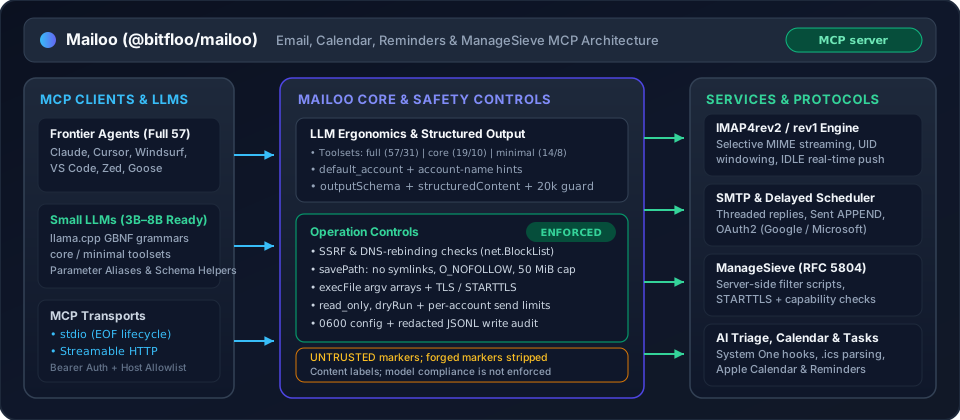
Enforced operation controls:
- Zero Shell Execution (
execFileonly) — Native OS integrations (macOSosascriptfor Calendar/Reminders/notifications, Linuxnotify-send, Windowspowershell, and crontab installation) invokechild_process.execFilewith argument arrays (shell: false), avoiding shell parsing of arguments. - SSRF & DNS-Rebinding Protection (
net.BlockList) — Outbound alert webhooks validate URLs against an IPv4/IPv6net.BlockListcovering loopback, RFC 1918 private ranges, link-local/cloud metadata (169.254.169.254,100.100.100.200), CGNAT, NAT64, 6to4, and reserved prefixes both at configuration time and at socket connection time (createWebhookConnectLookup), preventing DNS-rebinding attacks (src/safety/validation.ts). - Symlink-Free Write Containment (
savePath) — Attachment and.emlexports viasavePathare strictly confined to the working directory, walk every path segment withlstat, refuse hidden dotfiles and OS persistence directories (Library/LaunchAgents,.ssh,.gnupg), and open targets withO_CREAT | O_EXCL | O_NOFOLLOWunder a 50 MiB cap (5 MiB inline base64 cap). An.emlexport is capped by its own size; an attachment by its encoded size in the message, which for base64 runs above the file size (details). - Strict Credential File Permissions (
0600) —config.tomlis written and verified with mode0600inside a0700config directory ($XDG_CONFIG_HOME/mailoo/config.toml). Passwords and message bodies are redacted from the JSONL write audit log (src/safety/audit.ts). - TLS & STARTTLS Verification —
tlsenforces implicit TLS with certificate verification (verify_ssl = trueby default);starttlsfails closed if the server does not advertiseSTARTTLS. Turning both off is accepted only for a loopback host. ManageSieve refusesAUTHENTICATE PLAINover unencrypted sockets withoutSTARTTLS. - Operational Guardrails (
MCP_EMAIL_READ_ONLY,MCP_EMAIL_TOOLSET,dryRun) —MCP_EMAIL_READ_ONLY=truedisables all write tools, background watchers, hooks, and schedulers at startup, exposing only the 31 read-only tools.MCP_EMAIL_TOOLSET=full|core|minimalscopes the registered tool surface to match the agent's capability tier and context budget.dryRun: trueon high-risk tools (send_email,reply_email,forward_email,send_draft,delete_email,bulk_action,delete_mailbox,sieve_put_script,sieve_delete_script) validates all parameters and account resolution and returns a[DRY RUN]preview without modifying server state.
- Per-Account Rate Limiting —
rate_limit(default 10 sends/minute) enforces an independent token bucket per account (src/safety/rate-limiter.ts). Buckets live in memory, so each server process and eachmailoo scheduler checkrun counts on its own.
Untrusted-content labels: Email subjects, sender headers, bodies, previews, and authentication results are wrapped in <<<UNTRUSTED_EXTERNAL_CONTENT>>> … <<<END_UNTRUSTED_EXTERNAL_CONTENT>>> delimiters. Mailoo strips forged copies of these markers from the payload before wrapping it. This fencing identifies external content as data for the receiving model; it is not a sandbox for model behaviour or a guarantee against prompt injection.
LLM Ergonomics & Toolset Profiles
Mailoo is designed to work across both frontier models (Claude, GPT, Gemini) and local/small 3B–8B parameter models (llama.cpp GBNF grammars, Ollama, vLLM):
- Toolset Profiles (
MCP_EMAIL_TOOLSET/settings.toolset):full(default) — All 57 tools (31 inread_onlymode), including Calendar, Reminders, ManageSieve, Watcher, Scheduler, Templates, Contacts, and Analytics.core— 19 tools (10 inread_onlymode) covering core email workflows (accounts,mailboxes,emails,threads,send,drafts,manage,bulk,attachments,health).minimal— 14 tools (8 inread_onlymode) tailored for 3B–4B models with tight context budgets (accounts,mailboxes,emails,send,manage,health).
- Optional
account& Smart Account Resolution — When only a single account is configured ordefault_account(MCP_EMAIL_DEFAULT_ACCOUNT) is set, theaccountparameter is completely optional across tools. Account lookup also matches case-insensitively by profile name or email address (e.g., passing"you@example.com"resolves the matching account), and returns actionable error messages listing valid accounts (name (email)pairs) when ambiguous. - Lossless Parameter Normalization & GBNF Compatibility — Single-message tools accept
emailId,id, oremail_idas either string or integer (42or"42"). Batch tools (get_emails,bulk_action) accept string or numeric ID arrays (["42", "43"]or[42, 43]).list_emailsandsearch_emailsaccept bothhasAttachmentandhas_attachment. All Zod schemas avoid regex lookaheads sollama.cppGBNF grammar compilation succeeds without errors. - Context Window Protection —
get_emailandget_threaddefault toformat="text"and enforce a defaultmaxLengthof20000characters (appending a clear truncation notice when exceeded) so large HTML newsletters never overflow small context windows. - MCP
outputSchema&structuredContent— Tools declare structuredoutputSchemacontracts and return machine-readablestructuredContentalongside human-readable text blocks. - Outgoing attachment paths must be regular files under the working directory or home — Security considerations
Docs
| Topic | Where |
|---|---|
| First account, Claude Desktop / Cursor, and an agent's first MCP calls | docs/getting-started.md |
| IMAP credentials, Gmail / iCloud app passwords, and experimental Google / Microsoft OAuth | docs/authentication.md |
Sent APPEND, IMAP4rev2, Sieve, read_only, reconnect backoff, stdio EOF, shutdown, one mailbox writer per machine | docs/configuration.md |
savePath, search dates, get_email_security, sieve tools, send/draft attachments, RFC 2047, protected folders, busy-mailbox timeout, bulk_action ids, calendar attachment saves | docs/tools.md |
| Performance notes | docs/performance-roadmap.md |
Background
Most MCP email implementations provide only basic read/send. This server aims to be a full-featured email client for AI assistants, covering the entire lifecycle: reading, composing, managing, scheduling, and analyzing email — all from a single MCP server.
Key design decisions:
- XDG-compliant config — TOML at
~/.config/mailoo/config.toml - Multi-account — Operate across multiple IMAP/SMTP accounts simultaneously
- Layered services — Business logic is decoupled from MCP wiring for testability
- Provider auto-detection — Gmail, Outlook, Yahoo, iCloud, Fastmail, ProtonMail, Zoho, GMX
Install
Requires Node.js ≥ 24.
Before opening the wizard, prepare your provider credentials. For a complete first run, choose the Claude Desktop / Cursor or agent builder quickstart.
npx -y @bitfloo/mailoo@latest account add
That writes the local config and prints an MCP client snippet. The same package runs the server and the other commands:
npx -y @bitfloo/mailoo@latest
npx -y @bitfloo/mailoo@latest test
npx -y @bitfloo/mailoo@latest with no subcommand starts the MCP server over stdio. Keep the @latest tag: npx then checks the registry on every start, while a bare package name runs any copy installed globally or in the current project, however old. Or install the mailoo command:
npm install -g @bitfloo/mailoo
# or
pnpm add -g @bitfloo/mailoo
# or, without a global install:
pnpm dlx @bitfloo/mailoo account add
From a clone
Building this repository needs pnpm 12 (the packageManager version in package.json):
git clone https://github.com/Bitfloo/mailoo.git
cd mailoo
pnpm install && pnpm build
node dist/main.js account add
Docker
The running image needs Docker, not Node on the host. Create the config first with npx -y @bitfloo/mailoo@latest account add (or write the TOML by hand), then mount that directory into the container.
The image is ghcr.io/bitfloo/mailoo, built for linux/amd64 and linux/arm64. Version tags are bare semver (no v prefix); latest, alpine and the -bookworm / -alpine variants are published too. The 0.3 tag follows the newest 0.3.x release. Production setups should pin the full version from the release (it matches the npm version) or the image digest.
docker pull ghcr.io/bitfloo/mailoo:0.3
To build from a clone instead (docker-compose.yml uses build: .):
docker build -t ghcr.io/bitfloo/mailoo .
Note: The server uses stdio transport. Config is created on the host (
npx -y @bitfloo/mailoo@latest account add, or a hand-written TOML) and mounted into the container.
Installing or starting Mailoo does not send a usage report. An install count stays off until MAILOO_INSTALL_COUNTER is 1, true, on, or yes (any letter case, surrounding spaces ignored) and MAILOO_INSTALL_COUNTER_URL is set. The POST body is only product, version, event (install), and node_major. Unset, 0, false, no, or off keeps it off. Full rules: Install count.
Usage
Commands below use npx -y @bitfloo/mailoo@latest. A global install accepts the same subcommands as mailoo. From a clone, after pnpm build, those subcommands are node dist/main.js (see From a clone).
Setup
# Add an email account interactively (recommended)
npx -y @bitfloo/mailoo@latest account add

# Or use the deprecated alias (same wizard)
npx -y @bitfloo/mailoo@latest setup

# Or create a template config manually
npx -y @bitfloo/mailoo@latest config init
The setup wizard auto-detects server settings, tests connections, saves config, and outputs the MCP client config snippet.
Test Connections
npx -y @bitfloo/mailoo@latest test            # all accounts
npx -y @bitfloo/mailoo@latest test personal   # specific account
npx -y @bitfloo/mailoo@latest test / mailoo test is a live-account connection probe, not Vitest. Unit and integration tests are pnpm test / pnpm test:integration (see Contributing). OAuth2 accounts log in with an access token refreshed from the configured refresh token.
Configure Your MCP Client
Run the guided installer for Claude Desktop, Cursor or Windsurf, or paste a snippet below for any client. Mailoo is published to the official MCP Registry as io.github.Bitfloo/mailoo.
npx -y @bitfloo/mailoo@latest install
The installer can register an npx, pnpm dlx, or global mailoo launch. A mailoo binary already on PATH can use "command": "mailoo" with "args": ["stdio"].
Edit ~/Library/Application Support/Claude/claude_desktop_config.json (macOS) or %APPDATA%\Claude\claude_desktop_config.json (Windows):
{
  "mcpServers": {
    "mailoo": {
      "command": "npx",
      "args": ["-y", "@bitfloo/mailoo@latest", "stdio"]
    }
  }
}
Register the server with the claude CLI. The default scope is the current project only. Put --scope user before the server name to make it available in every project, or --scope project to write a shareable .mcp.json; anything after the -- is passed to the server, not to claude:
claude mcp add mailoo -- npx -y @bitfloo/mailoo@latest stdio
# or, available in every project:
claude mcp add --scope user mailoo -- npx -y @bitfloo/mailoo@latest stdio
Mailoo is not in the VS Code Extensions gallery. Point Copilot at the npx launch below.
Workspace (.vscode/mcp.json):
{
  "servers": {
    "mailoo": {
      "type": "stdio",
      "command": "npx",
      "args": ["-y", "@bitfloo/mailoo@latest", "stdio"]
    }
  }
}
User config (settings.json, all workspaces):
Open the Command Palette → Preferences: Open User Settings (JSON) and add:
{
  "mcp": {
    "servers": {
      "mailoo": {
        "type": "stdio",
        "command": "npx",
        "args": ["-y", "@bitfloo/mailoo@latest", "stdio"]
      }
    }
  }
}
Edit ~/.cursor/mcp.json:
{
  "mcpServers": {
    "mailoo": {
      "command": "npx",
      "args": ["-y", "@bitfloo/mailoo@latest", "stdio"]
    }
  }
}
Edit ~/.codeium/windsurf/mcp_config.json:
{
  "mcpServers": {
    "mailoo": {
      "command": "npx",
      "args": ["-y", "@bitfloo/mailoo@latest", "stdio"]
    }
  }
}
Edit ~/.config/zed/settings.json:
{
  "context_servers": {
    "mailoo": {
      "command": {
        "path": "npx",
        "args": ["-y", "@bitfloo/mailoo@latest", "stdio"]
      }
    }
  }
}
Add to ~/.vibe/config.toml:
[[mcp_servers]]
name = "mailoo"
transport = "stdio"
command = "npx"
args = ["-y", "@bitfloo/mailoo@latest", "stdio"]
To pass credentials directly instead of using a config file, use the env field:
[[mcp_servers]]
name = "mailoo"
transport = "stdio"
command = "npx"
args = ["-y", "@bitfloo/mailoo@latest", "stdio"]
env = { MCP_EMAIL_ADDRESS = "you@example.com", MCP_EMAIL_PASSWORD = "your-app-password", MCP_EMAIL_IMAP_HOST = "imap.example.com", MCP_EMAIL_SMTP_HOST = "smtp.example.com" }
MCP tools are exposed as mailoo_<tool_name> (e.g. mailoo_list_emails). Restart Vibe after editing the config.
Run the server in a container — mount your config directory read-only. The image is ghcr.io/bitfloo/mailoo:0.3 (or build it with docker build -t ghcr.io/bitfloo/mailoo .):
docker run --rm -i \
  -v ~/.config/mailoo:/home/node/.config/mailoo:ro \
  ghcr.io/bitfloo/mailoo:0.3
For MCP client configuration (e.g. Claude Desktop):
Replace /absolute/path/to/mailoo-config below with the full absolute path to the host directory containing config.toml. MCP clients spawn Docker directly: they do not expand ~ or shell variables in JSON arguments. The shell example above relies on shell expansion. On Windows with Docker Desktop, use a shared Windows host path such as C:/absolute/path/to/mailoo-config in this argument; do not copy the Unix path or shell line continuations.
{
  "mcpServers": {
    "mailoo": {
      "command": "docker",
      "args": [
        "run", "--rm", "-i",
        "-v", "/absolute/path/to/mailoo-config:/home/node/.config/mailoo:ro",
        "ghcr.io/bitfloo/mailoo:0.3"
      ]
    }
  }
}
{
  "mcpServers": {
    "mailoo": {
      "command": "npx",
      "args": ["-y", "@bitfloo/mailoo@latest", "stdio"],
      "env": {
        "MCP_EMAIL_ADDRESS": "you@example.com",
        "MCP_EMAIL_PASSWORD": "your-app-password",
        "MCP_EMAIL_IMAP_HOST": "imap.example.com",
        "MCP_EMAIL_SMTP_HOST": "smtp.example.com"
      }
    }
  }
}
CLI Commands
npx -y @bitfloo/mailoo@latest [command]

Commands:
  stdio                     Run as MCP server over stdio (default)
  http [port] [host]        Streamable HTTP (default: port 8080 on 127.0.0.1 and ::1)
  account list              List all configured accounts
  account add               Add a new email account interactively
  account edit [name]       Edit an existing account
  account delete [name]     Remove an account
  setup                     Deprecated alias for 'account add'
  test                      Test connections for all or a specific account
  install                   Register mailoo with MCP clients interactively
  install status            Show registration status for detected clients
  install remove            Unregister mailoo from MCP clients
  config show               Show config (passwords masked)
  config edit               Edit global settings (rate limit, read-only)
  config path               Print config file path
  config init               Create template config
  scheduler check           Process pending scheduled emails
  scheduler list            Show all scheduled emails
  scheduler install         Install OS-level scheduler (launchd/crontab)
  scheduler uninstall       Remove OS-level scheduler
  scheduler status          Show scheduler installation status
  notify test               Send a test desktop notification
  notify status             Check platform notification support
  --version, -v             Print the package version
  help                      Show help
HTTP
http listens on 127.0.0.1 and ::1 (port 8080 unless you pass another port). A non-loopback address or a non-loopback name in MCP_EMAIL_HTTP_ALLOWED_HOSTS requires MCP_EMAIL_HTTP_TOKEN. Details, including 0.0.0.0 / :: and the 8 MiB body limit: docs/configuration.md.
npx -y @bitfloo/mailoo@latest http
MCP_EMAIL_HTTP_TOKEN='replace-with-a-long-random-secret' npx -y @bitfloo/mailoo@latest http 8080 192.0.2.10
Clients send Authorization: Bearer <token> when a token is configured.
Configuration
Located at $XDG_CONFIG_HOME/mailoo/config.toml (default: ~/.config/mailoo/config.toml).
[settings]
rate_limit = 10  # max emails per minute per account
read_only = false
toolset = "full"  # "full" | "core" | "minimal"
default_account = "personal"  # optional when only one account is configured
save_to_sent = true  # see docs/configuration.md — Gmail already files Sent

[[accounts]]
name = "personal"
email = "you@example.com"
full_name = "Your Name"
password = "your-app-password"

[accounts.imap]
host = "imap.example.com"
port = 993
tls = true
# disable_imap4rev2 = true  # Strato and similar SEARCH bugs
# sieve_host = "imap.example.com"
# sieve_port = 4190

[accounts.smtp]
host = "smtp.example.com"
port = 465
tls = true
starttls = false
verify_ssl = true

[accounts.smtp.pool]
enabled = true
max_connections = 1
max_messages = 100
An IMAP or SMTP block with tls = false and starttls = false, in the file or from MCP_EMAIL_*, loads only for localhost, an address in 127.0.0.0/8 written in full (such as 127.0.0.1), or ::1; any other host is refused at config load.
OAuth2 (experimental)
Note: OAuth2 support is experimental and requires your own provider application and initial refresh token. The account wizard does not perform browser authorization. Follow the authentication guide for app registration, consent, token exchange, and connection checks.
Token refresh and code exchange give up after 15 seconds, so a provider that stops answering fails the connect with OAuth2 token refresh timed out after 15s instead of hanging it. Callers that need a fresh token at the same time share one refresh request. The IDLE watcher logs in with the same access tokens.
[[accounts]]
name = "work"
email = "you@example.com"
full_name = "Your Name"

[accounts.oauth2]
provider = "google"            # or "microsoft"
client_id = "your-client-id"
client_secret = "your-client-secret"
refresh_token = "your-refresh-token"

[accounts.imap]
host = "imap.example.com"
port = 993
tls = true

[accounts.smtp]
host = "smtp.example.com"
port = 465
tls = true

[accounts.smtp.pool]
enabled = true
max_connections = 1
max_messages = 100
Environment Variables
For single-account setups (overrides config file):
| Variable | Default | Description |
|---|---|---|
MCP_EMAIL_ADDRESS | required | Email address |
MCP_EMAIL_PASSWORD | required without OAuth2 | Password or app password. Not needed for an OAuth2 account (MCP_EMAIL_OAUTH2_PROVIDER set) |
MCP_EMAIL_OAUTH2_PROVIDER | — | google, microsoft or custom, read exactly as set; any other value is refused. Unset or empty means no OAuth2. An account in the environment replaces the config file, so custom set here fails at the first token request. Configure a custom account entirely in the config file, with token_url and auth_url under [accounts.oauth2] |
MCP_EMAIL_OAUTH2_CLIENT_ID | required with a provider | OAuth2 client id |
MCP_EMAIL_OAUTH2_CLIENT_SECRET | required with a provider | OAuth2 client secret |
MCP_EMAIL_OAUTH2_REFRESH_TOKEN | required with a provider | OAuth2 refresh token |
MCP_EMAIL_IMAP_HOST | required | IMAP server hostname |
MCP_EMAIL_SMTP_HOST | required | SMTP server hostname |
MCP_EMAIL_ACCOUNT_NAME | default | Account name |
MCP_EMAIL_FULL_NAME | — | Display name |
MCP_EMAIL_USERNAME | Login username | |
MCP_EMAIL_IMAP_PORT | 993 | IMAP port |
MCP_EMAIL_IMAP_TLS | true | IMAP TLS |
MCP_EMAIL_SMTP_PORT | 465 | SMTP port |
MCP_EMAIL_SMTP_TLS | true | SMTP TLS |
MCP_EMAIL_SMTP_STARTTLS | false | SMTP STARTTLS |
MCP_EMAIL_SMTP_VERIFY_SSL | true | Verify SSL certificates |
MCP_EMAIL_SMTP_POOL_ENABLED | true | Enable SMTP transport pooling |
MCP_EMAIL_SMTP_POOL_MAX_CONNECTIONS | 1 | Max pooled SMTP connections |
MCP_EMAIL_SMTP_POOL_MAX_MESSAGES | 100 | Max messages per pooled connection |
MCP_EMAIL_RATE_LIMIT | 10 | Max sends per minute |
MCP_EMAIL_READ_ONLY | false | Disable all write tools, background watchers, and schedulers |
MCP_EMAIL_TOOLSET | full | Toolset profile to expose (full, core, or minimal) |
MCP_EMAIL_DEFAULT_ACCOUNT | — | Default account name or email when account is omitted |
Without the address, both hosts, and a password or a provider, the environment describes no account: Mailoo loads the config file instead, or fails with No configuration found. when there is none.
Sent copies, IMAP4rev2, Sieve host/port, and read_only env vars:
docs/configuration.md.
Email Scheduling
The scheduler enables future email delivery with a layered architecture:
- MCP auto-check — Processes the queue on server startup, before the watcher connects, and every 60 seconds while the MCP server is running. With several
stdioservers, only the one that runs the watcher and hooks checks. A check still running when the next one is due is skipped, and failed sends are logged to the connected MCP client atwarning - CLI —
npx -y @bitfloo/mailoo@latest scheduler checkfor manual or cron-based processing. It sends with the same account settings as the server, including OAuth2 andsave_to_sent, and closes its IMAP/SMTP connections before it exits - OS-level daemon —
npx -y @bitfloo/mailoo@latest scheduler installsets up launchd (macOS) or crontab (Linux) to run every minute, independently of the MCP server
Important — the daemon must be installed for reliable delivery. Without it, scheduled emails only fire while an AI client is actively connected. Your machine also needs to be running at the scheduled time; if it's asleep or off, the daemon will process overdue emails on next wake/startup. A failing send is attempted up to 3 times before the email is marked
failed.
Setting up the daemon
# Install (macOS launchd / Linux crontab — runs every minute)
npx -y @bitfloo/mailoo@latest scheduler install

# Verify it's running
npx -y @bitfloo/mailoo@latest scheduler status

# View pending / sent / failed scheduled emails
npx -y @bitfloo/mailoo@latest scheduler list

# Trigger a manual check immediately
npx -y @bitfloo/mailoo@latest scheduler check

# Remove the daemon
npx -y @bitfloo/mailoo@latest scheduler uninstall
Scheduled emails are JSON files in ~/.local/state/mailoo/scheduled/. Before sending, a check claims the entry with a lock file next to it and keeps that claim fresh while SMTP runs, so the in-process timer, mailoo scheduler check and other server processes do not send it twice. If the process dies after the server accepted a message but before it was recorded as sent, the entry can be sent again after the claim goes stale (at least once, not exactly once). Every attempt for one entry carries the same Message-ID, <schedule id@account domain>, so a receiving server or client can drop the second copy. Once SMTP has accepted a message, a failure to update the queue file is reported, and the entry is not sent again as long as either the sent record or the move into sent/ succeeded. If both failed, the next check sends it again unless it has used all its attempts, then it is marked failed. Each entry tracks its attempts (at most 3) and the last error; list_scheduled returns both, and scheduler list shows the error of a failed entry. An entry the rate limit holds back stays pending for the next check and does not use an attempt.
Real-time Watcher & AI Hooks
The IMAP IDLE watcher monitors configured mailboxes in real-time using persistent IDLE connections (separate from tool connections). Each folder stays in IDLE between fetches, IDLE resumes about a second after each fetch, and idle_timeout sets how often IDLE is restarted. With several stdio servers on one machine (one per MCP client window), only one of them runs the watcher, hooks and scheduler; see configuration. When new emails arrive:
- Static rules — Pattern-match on from/to/subject → apply labels, flag, or mark read instantly (no AI)
- AI triage — Remaining emails are analyzed via MCP sampling with a customizable preset prompt
- Notify mode — Falls back to logging if AI triage is disabled
Configure in config.toml:
[settings.watcher]
enabled = true
folders = ["INBOX"]
idle_timeout = 1740     # 29 minutes (IMAP spec max is 30)

[settings.hooks]
on_new_email = "triage" # "triage" | "notify" | "none"
preset = "inbox-zero"   # "inbox-zero" | "gtd" | "priority-focus" | "notification-only" | "custom"
auto_label = true       # apply AI-suggested labels
auto_flag = true        # flag urgent emails
batch_delay = 5         # seconds to batch before triage

# User context — appended to preset's AI prompt
custom_instructions = """
I'm a software engineer. Emails from @example.com are always high priority.
Newsletters I read: TL;DR, Hacker Newsletter.
"""

# Static rules — run BEFORE AI, skip AI if matched
[[settings.hooks.rules]]
name = "GitHub Notifications"
match = { from = "*@example.com" }
actions = { labels = ["Dev"], mark_read = true }

[[settings.hooks.rules]]
name = "Newsletter Archive"
match = { from = "*@example.com|*@example.test" }
actions = { labels = ["Newsletter"] }

[[settings.hooks.rules]]
name = "VIP Contacts"
match = { from = "ceo@example.com|cto@example.test" }
actions = { flag = true, labels = ["VIP"] }
Batches run one at a time. At most 500 new emails wait for the next batch; more are skipped with a warning in the log and stay in the mailbox unchanged.
Presets
| Preset | Focus | Suggested Labels |
|---|---|---|
inbox-zero | Aggressive categorization + archiving | Newsletter, Notification, Updates, Finance, Social, Promo |
gtd | Getting Things Done contexts | @Action, @Waiting, @Reference, @Someday, @Delegated |
priority-focus | Simple priority classification (default) | (none — just priority + flag) |
notification-only | No AI triage, just log | (none) |
custom | User defines full system prompt | User-defined |
Static Rules
Static rules use glob-style patterns (*@example.com) with | as OR separator (*@example.com|*@example.test). All conditions within a match are AND'd. A to pattern matches when any one recipient matches. An empty pattern counts as no condition, and a rule with no condition matches nothing. First matching rule wins.
Available actions: labels (string array), flag (boolean), mark_read (boolean), alert (boolean — forces desktop notification).
Alerts
Urgency-based multi-channel notification routing — grab attention for important emails even when you're not looking at the chat. All channels are opt-in and disabled by default.
| Priority | Desktop | Sound | MCP Log Level | Webhook |
|---|---|---|---|---|
urgent | ✅ Banner | 🔊 Alert | alert | ✅ |
high | ✅ Banner | 🔇 Silent | warning | ✅ |
normal | ❌ | ❌ | info | ❌ |
low | ❌ | ❌ | debug | ❌ |
The MCP log entry at the listed level names the account, folder, UID, labels
and rule. In alert entries, sender and subject appear only at debug: in a
separate entry, or for low in the single entry.
[settings.hooks.alerts]
desktop = true              # OS-level notifications (macOS/Linux/Windows)
sound = true                # play sound for urgent emails
urgency_threshold = "high"  # minimum priority to trigger desktop alert
webhook_url = "https://ntfy.sh/my-email-alerts"  # optional: Slack, Discord, ntfy.sh, etc.
webhook_events = ["urgent", "high"]
allow_private_webhooks = false  # default; true allows a LAN, VPN, or tailnet target
Details: docs/configuration.md.
Supported platforms: macOS (Notification Center via osascript), Linux (notify-send), Windows (PowerShell toast). Zero npm dependencies — uses native OS commands.
Notification setup by platform:
Desktop notifications use osascript (built-in). The terminal app running the MCP server needs notification permission:
- Open System Settings → Notifications & Focus
- Find your terminal app (Terminal, iTerm2, VS Code, Cursor, etc.)
- Enable Allow Notifications and choose Banners or Alerts
- Ensure Focus / Do Not Disturb is not blocking notifications
Use check_notification_setup to diagnose and test_notification to verify.
Requires notify-send from libnotify. For sound alerts, paplay is also needed:
# Ubuntu / Debian
sudo apt install libnotify-bin pulseaudio-utils

# Fedora
sudo dnf install libnotify pulseaudio-utils

# Arch
sudo pacman -S libnotify
Desktop notifications require a running display server (X11/Wayland) — they will not work in headless/SSH sessions.
Uses PowerShell toast notifications (built-in):
- Open Settings → System → Notifications
- Ensure Notifications is turned on
- Set Focus Assist to allow notifications
- If using Windows Terminal, ensure its notifications are enabled
AI-configurable: The AI can check, test, and configure notifications at runtime:
check_notification_setup— diagnose platform support and show setup instructionstest_notification— send a test notification to verify everything worksconfigure_alerts— enable/disable desktop, sound, threshold, webhook (with optional persist to config file)
Webhook payload:
{
  "event": "email.urgent",
  "account": "work",
  "sender": { "name": "John CEO", "address": "ceo@example.com" },
  "subject": "Q4 Review Due Today",
  "priority": "urgent",
  "labels": ["VIP"],
  "rule": "VIP Contacts",
  "timestamp": "2026-02-18T11:30:00Z"
}
Static rules can force desktop notifications with alert = true, regardless of urgency threshold:
[[settings.hooks.rules]]
name = "VIP Contacts"
match = { from = "ceo@example.com" }
actions = { flag = true, alert = true, labels = ["VIP"] }
Features:
- Auto-reconnect — Retries a dropped or failed folder connection on the reconnect backoff schedule; mail delivered while the connection was down is reported after the reconnect, unless the server changed the folder's UIDVALIDITY; a folder that has not connected yet reports only mail that arrives after its first successful connect
- Batching — Groups arrivals within a configurable delay to reduce AI calls
- Rate limiting — Max 10 sampling calls per minute
- Graceful degradation — Falls back to notify mode if client doesn't support sampling
System One (opt-in typed filing)
Optional TypeSafe System One classification on residue mail after static rules. Off by default. Both settings.watcher.enabled and settings.system_one.enabled must be on. Set TYPESAFE_API_KEY in the environment (never in TOML).
Only new mail in source_folders (default INBOX) that no static rule handled is classified. For each such message Mailoo sends one request to api.typesafe.ai (or TYPESAFE_BASE_URL). The request carries (src/services/mail-arrival/state.ts, src/services/mail-arrival/questions.ts):
| Data | Sent |
|---|---|
| Sender | Display name and address from From |
| Subject | The full subject |
| Links | URLs found in the subject, and in the body when include_body = true |
| Attachments | File name and MIME type of each attachment, not the file contents |
| Sender authentication | SPF, DKIM (result and signing domain), and DMARC results; the From, Reply-To, and Return-Path domains; whether a List-Unsubscribe header is present |
| Mailbox | The configured account name and the folder the message is in |
| Folder rules | For each [[settings.system_one.folders]] entry: path, description, and false_criteria, or the other folder paths when false_criteria is unset |
| Model | The model setting (default jev-latest) |
| Body | Only with include_body = true: plain text without the quoted reply chain, cut to body_max_chars (default 6000, maximum 24000) |
Not sent: To, Cc, and Bcc addresses, Message-ID, other raw headers, attachment contents, and the body while include_body is false.
Mailoo remembers the last 5000 messages it classified and does not send them again. A message that reaches two of your accounts is classified once in each. A message whose request, or whose header read, failed is not remembered, so the next notice of it tries again.
auto_move and auto_flag are separate poles and default false. Filing destinations come from folders[].path (validated against IMAP LIST), not a live listing of every mailbox.
[settings.system_one]
enabled = false
include_body = false
auto_move = false
auto_flag = false

[[settings.system_one.folders]]
path = "Receipts"
description = "Invoices, receipts, and payment confirmations."
on_new_email = "notify" or "triage" both feed System One when it is on. none stays off.
Capabilities & data flows
Documentation truncated — see the full README on GitHub.
Reviews
No reviews yet
Be the first to review this server!
More Developer Tools MCP Servers
Rea
Freeby Morluto · Developer Tools
Reverse engineer anything from your terminal or agent with one CLI and MCP server.
Paperclip
Freeby Paperclipai · Developer Tools
Trending hip-hop artist momentum scores across four cultural dimensions.
Toleno
Freeby Toleno · Developer Tools
Toleno Network MCP Server — Manage your Toleno mining account with Claude AI using natural language.
MCP Marketplace
Freeby mcp-marketplace · Developer Tools
Search and install MCP servers from inside your AI client.
mcp-creator-python
Freeby mcp-marketplace · Developer Tools
Create, build, and publish Python MCP servers to PyPI — conversationally.
by Lharries · Communication
Read, search, and send WhatsApp messages through your AI assistant